

AI Video Generator Guide: Tools, Workflows, and Use Cases
Compare AI video generator types, learn how text-to-video and image-to-video workflows work, and build a practical process for planning and reviewing AI clips.
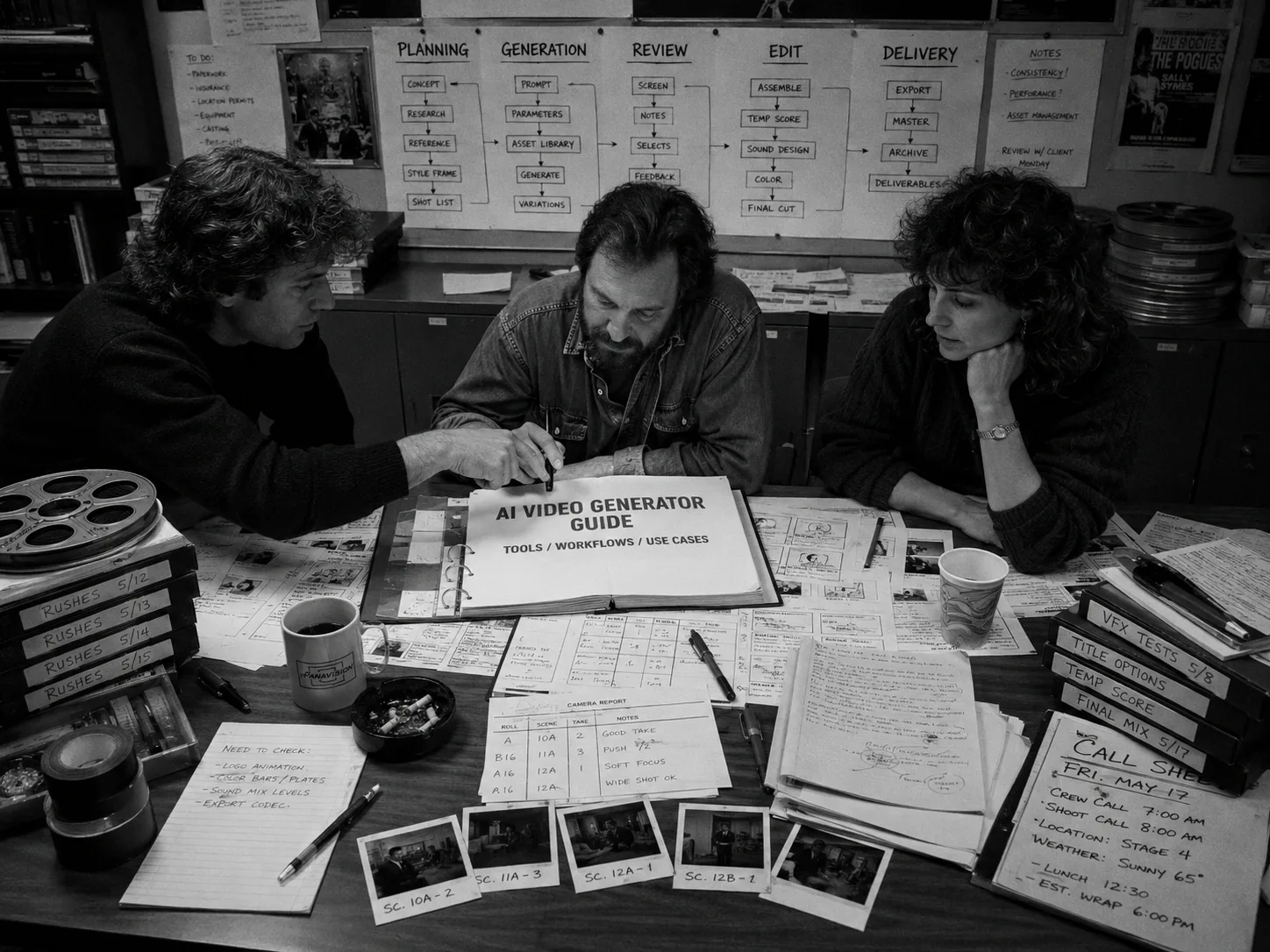
An AI video generator turns text, images, video references, or other creative inputs into short generated clips. The useful question is not whether AI can make video. It can. The real question is how you plan, generate, review, and keep those clips organized.
For one social test, a prompt box may do enough. For a film sequence, product concept, trailer, or client-facing pitch, you need a workflow: references, shot plans, generated takes, review states, and a clean path into edit decisions. That is where AI video generation starts to look like production.
What is an AI video generator?
An AI video generator is software that creates video from inputs such as text prompts, still images, source clips, audio, or structured creative controls. It works best when you treat each output as a take attached to a specific shot, not as a finished video that appears from one prompt.
Most tools in this category share a few pieces:
- Input controls: Text prompts, image references, source video, frame anchors, or model settings.
- Generation settings: Duration, aspect ratio, resolution, seed, style, motion strength, or audio options depending on the tool.
- Output clips: Short video files or previews that need review, trimming, and selection.
- Usage limits: Credits, tokens, queues, duration caps, or export rules.
- Review needs: A way to mark what worked, what failed, and what needs another pass.
The category gets noisy because “AI video generator” can mean several workflows. A solo creator may want a fast AI video maker for a mood clip. A director may need image-to-video control for a storyboard frame. A producer may need a workspace that keeps every generated take tied to a scene, shot, reference stack, and approval path.
That production layer matters. A generated clip can look impressive and still fail the project if the character changes wardrobe, the camera move ignores the edit, or nobody remembers which prompt created the usable take.
For the broader craft layer, start with the AI filmmaking guide. For tool selection by production job, use the AI filmmaking tools guide.
AI video generator types by input
AI video generators differ most by the input they accept. Text-to-video starts from language, image-to-video starts from a still frame or reference, video-to-video starts from motion footage, and production workspaces organize the planning and review around those generated outputs before approval.
| Generator type | Main input | Best fit | Control level | Watch for |
|---|---|---|---|---|
| Text-to-video | Written prompt | Quick ideas, abstract scenes, fast visual tests | Medium | Vague prompts, continuity drift, weak shot criteria |
| Image-to-video | Still image or reference frame | Character looks, product shots, storyboard frames | Higher visual control | Motion mismatch, reference interpretation, style drift |
| Video-to-video | Existing clip or motion reference | Blocking, camera movement, dance, action, stylization | Higher motion control | Source rights, clip limits, unintended artifacts |
| Avatar or presenter video | Script, voice, avatar, brand setup | Training, explainers, hosted content | High for presenter format | Less natural fit for cinematic coverage |
| Editing-assisted generation | Timeline, source media, edit task | Cleanup, captions, variants, cutdowns | Varies by task | Tool output may still need manual finishing |
| Production workspace | Scenes, shots, assets, prompts, takes | Multi-shot projects and team review | High workflow control | Requires clear inputs and review rules |
No single type solves every job. A mood test may only need text-to-video. A recurring character usually needs image references, wardrobe notes, and stricter review. A scene with matching coverage needs shot records so the editor can tell which take belongs where.
The model makes the clip. The workflow makes it usable.
When a free AI video generator is enough
A free or low-friction AI video generator can work for quick experiments, pitch fragments, internal mood tests, and one-off social clips. It starts to strain when the project needs consistent references, team approvals, tracked usage, rights review, or multiple shots that must cut together.
Use a lightweight generator when the output has a narrow job:
- Test whether a visual idea has energy.
- Animate one still image for a mood board.
- Create a quick background plate or abstract motion test.
- Explore camera movement before committing to a shot plan.
- Make a rough clip for an internal creative conversation.
Do not confuse low friction with production readiness. Provider access, credit rules, export rights, watermark rules, and commercial terms can change, so verify official terms before you budget a project or deliver client-facing work.
The handoff test stays simple: if another person needs to understand why the clip exists, which references shaped it, who approved it, or how it fits into a sequence, you need more than a quick generator tab.
How to choose an AI video generator workflow
Choose the workflow by production risk, not by the flashiest demo. The right setup depends on your input needs, continuity demands, review process, team size, usage controls, governance requirements, and how much context the editor needs after generation ends during the final handoff.
Ask these questions before you spend credits:
| Decision point | Choose a simple generator when… | Choose a production workflow when… |
|---|---|---|
| Shot count | You need one isolated clip | You need a scene, sequence, or campaign set |
| References | The clip can drift without harming the work | Characters, props, wardrobe, or locations must stay stable |
| Review | One person can judge the output immediately | Producers, directors, editors, or clients need decisions |
| Prompt history | You do not need to recreate the result | You need prompt, model, settings, and reference context |
| Budget control | Usage stays small and informal | Token or credit spend needs visibility |
| Handoff | The clip can live as a standalone file | The editor needs scene, shot, and take context |
| Governance | No sensitive assets or client approvals apply | Consent, copyright, audit, or provider-access checks matter |
This framework keeps the decision grounded. A creator making one stylized loop does not need a full production workspace. A team making a multi-shot proof of concept does.
For movie-shaped work, the AI movie maker workflow explains how to move from logline to scenes, prompts, takes, and edit. For production operations, the AI in video production guide gives a full planning-to-dailies path.
A practical AI video generation workflow
A practical AI video generation workflow starts with the scene goal, breaks that goal into shots, attaches references, generates multiple takes, reviews those takes against clear standards, and moves only selected or approved material into the edit before anyone starts another pass.
- Name the project and output. Decide whether you are making a product concept, short film, music video, trailer, explainer, or internal test.
- Define the scene job. Write what changes in the scene: a reveal, reversal, choice, threat, joke, or product beat.
- Break the scene into shots. Give each shot a code, title, frame, action, and edit purpose.
- Build the reference set. Gather character, location, prop, wardrobe, lighting, frame, and motion references.
- Write shot-specific prompts. Avoid one giant prompt for the entire piece. Give each shot a clear task.
- Generate takes. Run several options and keep each output tied to the prompt, references, model, and settings.
- Review dailies. Mark each take as rejected, maybe, selected, or approved.
- Regenerate with intent. Change one major variable at a time so the next pass teaches you something.
- Plan the edit. Move selected or approved takes into scene review, trim planning, and post-production.
- Keep the record. Preserve the decision trail for collaborators, spending, and governance review.
This workflow does not make AI video slower. It reduces rework. A team that plans the shot can judge the output quickly. A team that only asks for “more cinematic” burns time guessing what failed.
For a tighter review habit, use the review takes and dailies tutorial. If you need to set up the project container first, follow the AI video project workspace tutorial.
Prompt an AI video generator like a director
Strong AI video prompts describe the shot, not just the vibe. Give the generator a subject, action, frame, camera behavior, lighting, environment, duration, references, constraints, and a review standard so the team can judge the result without inventing criteria afterward.
A weak prompt asks for a cool clip. A useful prompt gives the shot a job.
Prompt pattern:
Scene 02, Shot 04. Eight-second medium close-up of Lena at a rain-streaked diner window, tired but alert. Slow push-in as she sees a black sedan stop outside. Use the Lena character reference and diner location reference. Keep blue jacket unchanged. No extra people.
That prompt still may fail. The face may drift. The rain may overpower the action. The camera may push too fast. But now the review has a target. You can reject the take for a specific reason, adjust the prompt, and generate a cleaner next pass.
Use these fields when writing prompts:
- Scene context: What changed before this shot, and what should change after it?
- Subject and action: Who appears, what they do, and what the viewer should track.
- Framing: Wide, medium, close-up, insert, overhead, profile, or point of view.
- Camera behavior: Static frame, push-in, pullback, pan, tilt, handheld, crane, or tracking move.
- Lighting: Practical sources, contrast, time of day, color direction, and mood.
- Environment: Location details that must stay readable.
- Reference use: Which character, location, prop, wardrobe, frame, or source video should guide the shot.
- Constraints: What should not appear, change, or distract.
- Review standard: What makes the take usable for the edit.
For Seedance-specific prompt structure, use the Seedance 2.0 prompt guide. For image and frame planning, use the Seedance 2.0 shot planning workflow.
How Lotix turns AI video generation into production work
Lotix gives AI video work a production structure around projects, assets, sequences, scenes, shots, generated takes, and dailies. Instead of treating each clip as an isolated export, teams can connect prompts, references, settings, review states, and approvals to the shot they serve.
The natural limit of a generator appears after the first useful clip. You have the take, but now you need memory: which character reference guided it, which shot it belongs to, which settings created it, and whether the director selected it.
Lotix handles that production layer with film-native units:
| Production need | How Lotix supports it |
|---|---|
| Project structure | Organize work into projects, sequences, scenes, shots, takes, and dailies |
| Reusable references | Build production assets for characters, locations, props, wardrobe, and reference videos |
| Shot planning | Compose structured shot plans with duration, aspect ratio, resolution, frame anchors, prompt sections, references, and model settings |
| AI video generation | Generate reviewable takes through the current Seedance-focused path, centered on Seedance 2.0 and Seedance 2.0 Fast |
| Review | Mark takes as unreviewed, rejected, maybe, selected, or approved |
| Dailies | Review successful generated takes with links back to shot and take context |
| Team roles | Invite collaborators as owner, producer, director, assistant director, editor, commenter, or viewer |
| Spend visibility | Use prepaid workspace tokens with reservation before generation and settlement after provider completion |
| Governance | Route generation through entitlement, compliance, asset, consent, copyright, audit, and provider-access checks |
Lotix is not trying to replace every creative tool in the stack. It gives the stack a production record. You can still think like a filmmaker: build the visual world, direct the shot, generate takes, review dailies, and move selected material toward edit decisions.
Reference control also stays practical. Lotix supports image references with roles such as first frame, last frame, and reference image, plus reference videos for motion, camera, timing, and staging guidance. That gives teams a way to guide generation without scattering source material across separate folders.
For connected Seedance scenes, use the Seedance 2.0 multi-shot workflow. To understand the product modules, visit the Lotix product workflow.
AI video generator use cases
AI video generators support different jobs across development, pre-production, generation, review, and marketing. The strongest use cases keep output scope narrow: one scene test, one product motion study, one trailer beat, one animated shot, or one reference-driven take for a clear decision.
| Use case | What to generate | What to plan first | What to review |
|---|---|---|---|
| Concept trailer | Key trailer beats, title-card shots, mood clips | Story promise, audience, pacing, references | Hook clarity, rhythm, continuity, usable transitions |
| Short film test | Individual shots or scene coverage | Logline, scene list, characters, locations | Performance intent, shot continuity, edit usefulness |
| Product concept | Product-in-motion clips, environment tests | Product angles, materials, forbidden details | Accuracy, legibility, brand fit |
| Music video | Stylized scenes, motion tests, visual motifs | Track sections, beat map, visual rules | Timing, style consistency, cut points |
| Explainer | Visual metaphors, product moments, supporting clips | Script beats, brand references, edit format | Clarity, pacing, caption space |
| Internal creative test | Rough clips for stakeholder review | Question the test must answer | Decision value, not polish |
| Animated or stylized scene | Character motion, environments, action beats | Style guide, storyboards, references | Pose, timing, camera movement, continuity |
Keep the output small enough to judge. A whole-film prompt creates vague failure. A shot prompt creates specific feedback.
For stylized work, the AI animation generator guide applies the same take-based process to animation-style output. For trailers, use the AI movie trailer maker guide to shape pacing, titles, and turns.
AI video generator checklist for teams
Teams should evaluate AI video generators by control, continuity, review, and handoff. A flashy sample clip matters less than whether the workflow preserves references, prompts, settings, generated takes, spending context, and approval decisions after the first round ends and the project moves forward.
Use this checklist before a serious project:
- Input fit: Does the shot need text, image, video, audio, frame anchors, or several references?
- Shot control: Can the team specify subject, action, camera, lighting, duration, aspect ratio, and constraints?
- Reference handling: Can the workflow keep characters, locations, props, wardrobe, and motion references organized?
- Take history: Can reviewers see which prompt, model, settings, and references created the output?
- Review states: Can the team mark rejects, maybes, selects, and approvals?
- Dailies review: Can the director and producer review generated takes in scene context?
- Team access: Can different collaborators see and act on the work according to their roles?
- Usage visibility: Can the owner understand token or credit use before and after generation?
- Governance trail: Can the team preserve consent, copyright, audit, and provider-access context?
- Editor handoff: Can post-production receive selected clips with the scene and shot intent intact?
Run a small benchmark before a larger production. Pick three test shots: one character close-up, one prop-dependent action, and one camera move. The best workflow will make the review easier, not just the first generation prettier.
Frequently asked questions
AI video generator questions usually come back to scope: what input the tool accepts, how much control the team gets, whether output can support commercial work, and when a production workspace becomes necessary before the first clip moves toward approval.
What is the best AI video generator?
The best AI video generator is the one that fits the shot’s input needs and review demands. Text-to-video works for quick ideas, image-to-video helps preserve visual intent, video-to-video can guide motion, and production workspaces help teams manage multi-shot projects with dailies attached.
Do not choose only by demo quality. Choose by the job: concept clip, product motion, character scene, animation-style output, dailies review, or editor handoff. The more context the project needs, the more the surrounding workflow matters.
Is there a free AI video generator?
Free or low-friction AI video generators can help with quick tests, mood clips, and early creative exploration. They work best when the clip stands alone, carries low risk, and does not need a formal review path, team approval, or detailed handoff.
Use them to answer small questions. Can this image move? Does this camera idea feel useful? Does this product angle read clearly? Move into a stronger workflow once the output must connect to other shots, references, or approvals.
Can AI generate realistic video from text?
AI can generate realistic-looking video from text, but realism alone does not make a clip production-ready. The prompt still needs a clear subject, action, frame, camera move, lighting direction, constraints, review standard, and a human reviewer to decide whether it serves the edit.
Text-to-video can explore ideas fast. For tighter visual control, add image references, frame anchors, or source video when the tool supports them. Review every result against the shot’s job, because a polished miss still wastes the edit.
What is the difference between text-to-video and image-to-video AI?
Text-to-video starts from written instructions, while image-to-video starts from a still image or reference frame. Text gives speed and flexibility. Image input gives the model a stronger visual anchor for character appearance, product shape, composition, or mood control during review.
Use text when the idea matters more than exact continuity. Use image input when the shot needs a specific face, wardrobe, object, location, or board frame. Many production workflows use both: text for direction, images for continuity.
Can AI-generated videos be used commercially?
AI-generated videos can support commercial work only when the team clears the inputs, model terms, likeness rights, client rules, platform policies, music, voice, and disclosure expectations. The generator output still needs the same kind of production review as other creative material.
Keep records close to the work. Save prompts, references, source assets, review decisions, and approvals. A clean production trail helps producers and clients evaluate the final piece without reconstructing every generation choice later.
When is a production workspace better than an AI video generator?
A production workspace becomes better once the project needs memory. Multiple scenes, recurring characters, shared references, collaborator roles, take review, dailies, token visibility, and editor handoff all create questions that a standalone generator usually does not answer during review and handoff.
That does not make the generator less useful. It means the generator handles footage, while the workspace handles production context. Lotix focuses on that context: projects, assets, shots, Seedance takes, review states, dailies, roles, tokens, and governance workflows.
Start creating with a production workflow
Start with one scene, not an entire film. Create the project, define the shots, attach references, generate takes through the supported path, review the dailies, and approve only the clips that serve the edit before you spend more time generating variations.
In Lotix, you can build the project structure first: characters, locations, props, wardrobe, reference videos, sequences, scenes, shots, generated takes, and dailies. Current video generation support centers on Seedance 2.0 and Seedance 2.0 Fast, so your generations stay tied to the production record around them.
Free workspace
Create your free Lotix workspace.
Plan your shots, manage your assets, generate takes with built-in Seedance, and keep generation spend visible with monthly tokens inside Lotix.
- Plan shots around scenes, references, and review needs
- Manage characters, locations, props, and production assets
- Generate Seedance takes with visible token usage