

AI in Video Production: How Teams Use AI From Planning to Dailies
A practical guide to AI in video production for teams planning scenes, generating takes, managing references, reviewing dailies, and approvals.
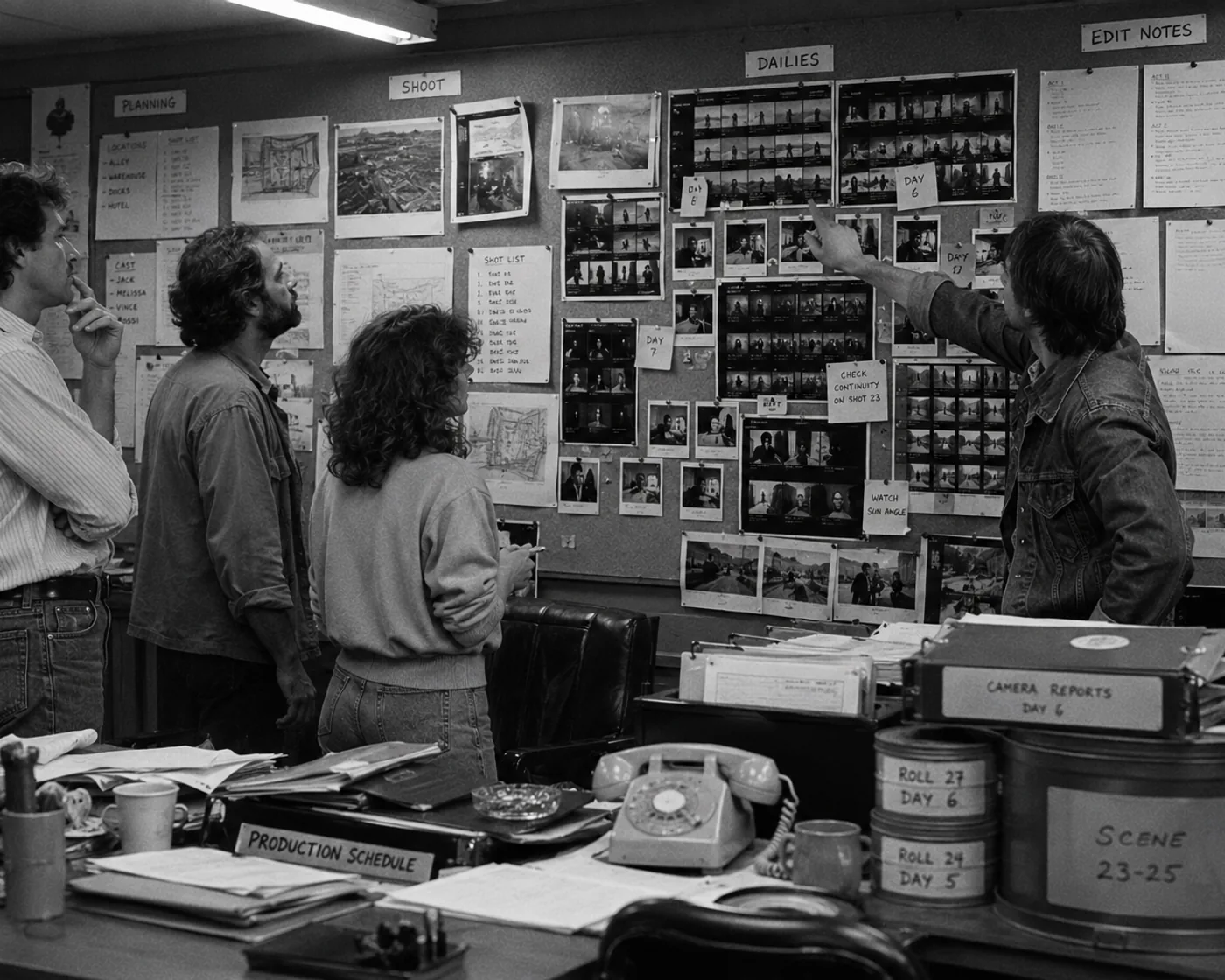
Let’s get straight to it: AI is only useful in video production if you actually give it a specific job. Left unchecked, your project just becomes a messy dumping ground of loose files, lost references, and zero approval trails.
We already know AI can make video. The real challenge is keeping your team organized when a model starts spitting out dozens of variations for a single shot. Here is how to build a practical workflow from planning straight through to dailies. For the broader craft layer, start with AI filmmaking, then use the AI filmmaking tools guide to compare the stack around generation.
The Bottom Line
Treat AI as a controlled production layer, not a chaotic clip generator. The secret sauce is simple: plan your scenes, lock down references, generate takes with intention, and review everything in dailies so nothing gets lost.
- Planning: Test your mood, references, and coverage before the cameras ever roll.
- Shot structure: Never ask a model to generate video until you’ve broken down the scene into individual shots.
- Reference control: Treat visual references as formal production assets, not loose email attachments.
- Generation: Use the right tool for the job (like Higgsfield, Runway, Luma, Kling, or Seedance), but tie every single output back to a shot plan.
- Dailies: Review these outputs like traditional takes - mark them as selects, get approvals, and run them through dailies.
- Governance: Manage roles, permissions, and tokens in a dedicated production workspace.
Nailing Pre-Production with AI
AI’s biggest superpower kicks in before you spend a dime on production. It allows directors and producers to test tone, coverage, and visual briefs rapidly without burning budget or client goodwill. You aren’t handing the director’s chair to a machine; you are using it to ask better creative questions early on.
Before hitting “generate,” your team needs answers:
| Production question | Why you need the answer first |
|---|---|
| What scene does this belong to? | So you can judge the output against the actual story context. |
| What needs to stay consistent? | References will carry continuity across your characters, props, and wardrobe. |
| What’s the shot’s job? | It gives the generator specific instructions instead of vague wishes. |
| Which references are cleared? | It cuts down on rights risks and general confusion. |
| What makes a take “good”? | Defining your review criteria speeds up decisions. |
| Who has approval power? | A proper workspace keeps responsibility crystal clear. |
Skipping straight from concept to generation works fine for a viral social clip. But if you are building a project that demands continuity, it’s a recipe for disaster.
For movie-shaped projects, the AI movie maker workflow turns this planning pass into scenes, shots, review, and edit steps.
Stop Prompt Guessing: Build a Shot Plan
Throwing random prompts at a tool isn’t production work. A real workflow requires you to define the scene before rendering a single frame.
A solid shot plan nails down:
| Shot-plan field | The details you need |
|---|---|
| Scene purpose | How the story shifts in this moment. |
| Shot job | Why we are looking at this specific angle. |
| Subject and action | Who or what the viewer is tracking. |
| Camera mechanics | Framing, height, movement, pace, and lens feel. |
| Environment | The non-negotiable location details that must stay readable. |
| References | Character, wardrobe, prop, location, audio, and motion files. |
| Constraints | What absolutely cannot appear or drift in the frame. |
| Review criteria | The baseline for what makes a take usable. |
AI can help you draft these lists or whip up storyboard thumbnails, but human judgment remains non-negotiable. A generated shot list might look incredibly cinematic and still completely fail the scene’s emotional beat. Use AI to accelerate the prep work, then lock the plan using real production experience.
For practical shot prep, pair the storyboard examples guide with the Seedance 2.0 prompt guide.
Wrangling Character and Visual Continuity
We’ve all seen AI videos where a jacket shifts color mid-scene or a prop magically changes size. The model might generate a visually stunning clip, but the continuity is completely wrecked. You fix this by treating your visual references as locked production assets, saving them before generation begins.
For a deeper continuity pass, read Character Consistency in AI Video. If the same performer or character recurs across shots, create a stable source with the character reference sheet tutorial.
Give every reference a specific job:
- Characters: Lock down identity, silhouette, hair, and facial expressions.
- Wardrobe: Dictate fit, color, material, and wear-and-tear.
- Locations: Control the layout, lighting, geography, and texture.
- Props: Manage scale, shape, handling, and surface markings.
- Frame anchors: Set your exact starting and ending compositions.
- Reference videos: Drive the motion, timing, camera behavior, and blocking.
Generators are adding features like keyframes and multi-reference inputs, but those don’t replace the need for a well-organized asset library. If you are working with a team, platforms like Lotix let you build and share these reusable assets so visual intent actually survives from shot to shot.
Generating Takes (The Right Way)
Different shots demand different tools. Whether you use Higgsfield, Runway, Luma Ray, Kling, or Seedance, the golden rule remains the same: every generated output needs to stay married to its shot plan, settings, and references.
- Higgsfield: Great for campaign concepts, VFX, creator workflows, and fast look tests. Start with the Higgsfield AI review and Higgsfield pricing.
- Runway: The Swiss Army knife featuring Gen-4.5, comprehensive editing workflows, and third-party models. Compare the Runway pricing and Runway ML alternative guides.
- Luma Ray3: Best for heavy visual exploration, keyframes, start/end frame control, and video-to-video fidelity.
- Kling AI: Strong for native motion, cinematic outputs, built-in audio, and image-to-video.
- Seedance 2.0: Excellent for director-style control, complex lighting, camera movement, and multimodal references. Start with the Seedance 2.0 access guide and the prompt guide.
Stop asking, “Which clip looks coolest?” and start asking, “Which take actually serves this shot?”
For stylized or animated output, the AI animation generator guide applies the same take-based workflow to animation-style scenes.
Running Reviews and Dailies
AI generation spits out a ton of near-misses. You’ll get the perfect face with janky motion, or flawless movement where a prop mysteriously vanishes. You need a review system that preserves why a take exists, rather than relying on decoding cryptic filenames.
Adopt real production review states:
- Rejected: Not useful. Regenerate or tweak the plan.
- Maybe: Has something worth saving. Keep it in the back pocket to compare against nearby shots.
- Selected: The current frontrunner take. Move it into the dailies queue.
- Approved: Cleared and ready for the next production phase with full context attached.
Review these in dailies so the whole team can see the takes in context alongside the original prompts, settings, and reference materials. Lotix review and dailies are built specifically for this kind of structured, take-based review.
For a hands-on review pass, use the AI video takes review tutorial.
Keep Things Legal: Governance and Permissions
Without guardrails, AI video generation spirals out of control rapidly. Before you start generating client-facing or sensitive material, lock down your permissions inside a workspace.
You need to track:
- Project roles: Define who is acting as the owner, producer, director, editor, or viewer.
- Asset use: Log exactly which production assets guided the generation.
- Sensitive references: Flag any use of copyrighted material, real likenesses, or client assets.
- Model context: Record which model and specific settings created a take.
- Approval state: Know exactly which take the team formally selected.
- Spend context: Maintain visibility over token reservations and provider billing.
- Audit context: Keep your review history ready for compliance checks.
Governance isn’t about automatic legal clearance; it’s about establishing a rock-solid trail of access, review, and generation history.
Do You Really Need a Full Workspace?
If you are just doing a quick, disposable test, a single generator is totally fine. Stick to a standalone tool if the clip doesn’t need to match other shots, requires no approvals, uses zero sensitive materials, and has clear export terms.
However, you need a true production workspace when the project actually has memory. The moment you introduce multiple scenes, recurring characters, shared references, team collaborators, token controls, or post-production handoffs, a standard generator can’t keep up. That is exactly where Lotix fits in, keeping team decisions attached directly to the work.
The Step-by-Step Practical Workflow
Yes, this takes more effort than mashing a single prompt. But it will save you hours of trying to reconstruct a project from a bloated downloads folder later.
- Nail down the scene beat and identify what changes.
- Break the scene into individual shots.
- Build and lock in your visual and audio references.
- Write strict shot plans defining the camera, constraints, and criteria.
- Generate your takes using the tool best suited for the job.
- Categorize takes as rejected, maybe, selected, or approved.
- Gather your selections and review them in dailies.
- Regenerate or tweak shots based on that review.
- Push the final selects to your editors for finishing.
- Archive the production record for spend tracking and governance.
For a full category map, go back to the AI filmmaking tools hub.
Frequently Asked Questions
How is AI used in video production?
Teams use it to handle planning, create references, test camera coverage, generate video, and review dailies. The most effective workflows tie every output directly to a scene, a reference, and a review decision.
Can AI replace a video production team?
No. It speeds up the grunt work, but humans still have to direct the scenes, manage consent, judge performances, edit the story, and finish the final deliverable.
What’s the difference between an AI video generator and a production workspace?
A generator just creates clips. A production workspace organizes the chaos around those clips, tracking scenes, dailies, roles, token usage, and approvals.
Which tools should teams compare first?
Look at the job the shot needs to do. Compare Higgsfield, Runway, Luma Ray, Kling, and Seedance for your actual generation needs. Look at Lotix when you need to manage assets, dailies, and team governance.
Does AI guarantee continuity between shots?
No, AI doesn’t guarantee continuity. You can use frame anchors and character controls, but things still drift. You fix this by strictly organizing your reusable assets and review criteria before giving final approval.
Free workspace
Create your free Lotix workspace.
Plan your shots, manage your assets, generate takes with built-in Seedance, and keep generation spend visible with monthly tokens inside Lotix.
- Plan shots around scenes, references, and review needs
- Manage characters, locations, props, and production assets
- Generate Seedance takes with visible token usage