
Storyboard Examples for AI Video Production
Practical storyboard examples for planning AI video shots with clearer framing, references, continuity notes, takes, and review criteria.
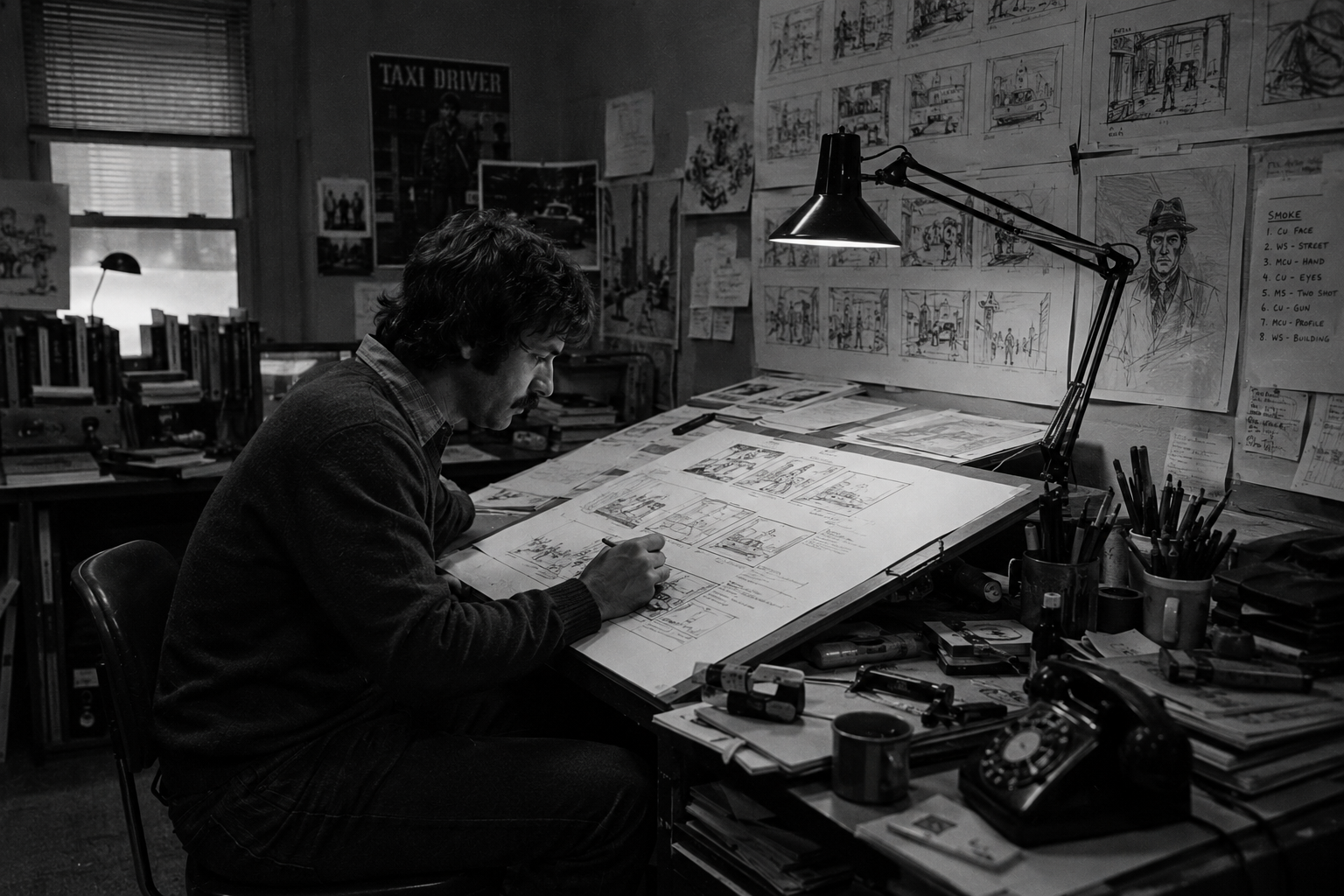
Storyboard examples help AI video teams only when they turn into shots. Each panel should define the shot’s job, framing, movement, references, continuity notes, and review criteria before anyone generates a take.
The best storyboard examples for AI video sit between a drawing and a production brief. They give the model a clear visual target, and they give your team a way to decide whether a generated take belongs in the scene.
Use the examples below for short films, trailers, commercials, proof-of-concept scenes, music videos, or pitch sequences built with generated video. For trailer-specific pacing, pair them with the AI movie trailer maker guide.
If you want to study the historical roots first, start with the companion guide to famous storyboard examples from film history, then come back here to translate those lessons into AI video shot plans.
Key takeaways
AI video storyboard examples should capture intent, not just composition. Treat each panel as a shot plan with subject, action, camera, references, continuity notes, constraints, and review criteria. That structure helps teams generate, compare, and approve takes with less guessing.
- A useful AI video storyboard panel captures shot intent, not only mood.
- Each panel should map to subject, action, camera, references, and constraints.
- Continuity notes matter when a scene repeats characters, wardrobe, props, or locations.
- Start and end frames work best when they help one generated take connect to the next.
- Review criteria should come before generation so the team can reject, maybe, select, or approve takes with less debate.
What makes a storyboard example useful for AI video
A useful AI video storyboard example shows what the shot must accomplish and how the team will judge the take. The panel can use rough art, a reference frame, collage, or still image if the production intent stays clear for review.
A traditional storyboard helps a crew understand what the camera should see. An AI video storyboard has an extra job: it has to survive the jump from visual planning into generated takes.
That does not mean every panel needs polished art. A rough sketch, reference frame, collage, or production still can work if it answers the right questions:
- What should the audience learn or feel in this shot?
- What is the focal point?
- What changes during the shot?
- What must stay consistent from the previous shot?
- Which reference image, character sheet, location photo, wardrobe note, or prop detail should guide generation?
- What would make the take unusable?
When those answers go missing, the storyboard becomes decoration. When they stay present, the board becomes a production tool. It can feed a shot list, a structured prompt, frame anchors, reference selection, and dailies review.
Seven storyboard examples to model
These seven storyboard examples cover the shots most AI video teams need first: establishing shots, character entrances, over-the-shoulder exchanges, prop inserts, reaction close-ups, movement transitions, and reference-matched action. Use them as modular panels inside a larger scene plan with matching review language.
| Storyboard example | Panel should show | Add to the shot plan | Review against |
|---|---|---|---|
| Establishing shot | Geography, scale, time of day, key entrance or exit | Location reference, lens feel, camera height, atmosphere | Does the viewer understand where the scene is? |
| Character entrance | Silhouette, wardrobe, direction of travel, first emotional read | Character reference, wardrobe state, blocking, performance note | Does identity and wardrobe carry from the asset library? |
| Over-the-shoulder exchange | Screen direction, eyeline, foreground/background relationship | Subject, dialogue or audio note, lens, negative constraints | Does the take preserve orientation and emotional focus? |
| Prop insert | Object shape, hand position, readable story detail | Prop reference, action, frame size, duration | Is the prop clear enough to matter in the edit? |
| Reaction close-up | Face position, lighting, emotional turn | Performance note, lighting, camera distance, hold length | Does the reaction sell the beat without adding noise? |
| Movement transition | Start composition, path of motion, end composition | Start frame, end frame, camera move, timing | Can the next shot connect cleanly? |
| Reference-matched action | Staging, body motion, camera behavior, speed | Reference video, action note, duration, constraints | Does the generated motion match the intended rhythm? |
1. Establishing shot
An establishing-shot panel should answer geography fast. Show where the scene happens, how large the space feels, where entrances or exits sit, and what time, weather, or lighting state controls the first read of the sequence for fast team review.
Add the location reference, time of day, weather, lens feel, practical lights, and camera behavior. The review test is simple: if someone sees the take without the script, can they understand the place?
2. Character entrance
A character entrance panel should protect identity before style. Show silhouette, wardrobe, travel direction, body angle, and first expression. Add continuity notes for props, costume damage, wet hair, masks, or lighting inherited from the previous shot for later take review. If the character recurs, create the source target first with the character reference sheet tutorial.
Attach the character reference and wardrobe notes to the shot plan. If the entrance depends on a prop, costume damage, wet hair, a mask, or a lighting state from the prior shot, write that in the continuity notes.
3. Over-the-shoulder exchange
An over-the-shoulder panel should preserve screen direction and emotional focus. Show who owns the foreground, who owns the background, where the eyeline lands, and how much of the environment must remain visible during the exchange for the planned final cut.
Use it for dialogue, confrontations, reveals, negotiations, and reaction beats. In review, watch for orientation drift. If positions flip, the shot may look good alone and still break the scene.
4. Prop insert
A prop insert panel gives a story object its own readable moment. Show the object’s shape, scale, markings, hand position, and the detail the audience must catch before the scene moves to the next beat in the later scene edit.
Add the prop reference, hand or body action, frame size, lighting, and the detail the viewer needs to catch. Keep the action small so the object stays readable.
5. Reaction close-up
A reaction close-up panel works when it has one emotional job. Choose fear, recognition, suspicion, grief, relief, or resolve, then show face position, lighting shape, eyeline, and hold length around that single beat so later reviewers judge the take consistently.
Add performance language, camera distance, lens feel, hold length, and eyeline. Review emotional clarity first. A beautifully lit close-up that plays the wrong beat is still the wrong take.
6. Movement transition
A movement transition panel should show the start position, motion path, and intended end composition. Use it when one generated take must connect cleanly to the next shot through a push-in, track, follow, tilt, rack focus, or static hold under review.
Use plain film language: slow push-in, lateral track, handheld follow, tilt up, rack focus, or static hold. If the next shot inherits the frame, mark the start or end anchor clearly.
7. Reference-matched action
A reference-matched action panel should separate composition from motion. The panel sets the frame, while a reference video guides timing, staging, body mechanics, camera behavior, fabric movement, dance rhythm, or another hard-to-describe action so the generated take has clear purpose.
Some shots need motion guidance more than extra art: fabric in wind, a handheld drift, a dance phrase, a creature movement, or a walk cycle. For stylized motion, the AI animation generator workflow helps decide whether text, image, avatar, animatic, or timeline control fits the shot.
The shot plan should say what the reference controls so the model does not need to infer the job.
Turn storyboard panels into shot plans
Turn each storyboard panel into a shot plan before generation. Translate the drawing or reference frame into shot code, purpose, subject, action, framing, camera, lighting, references, anchors, constraints, and review criteria so generation and review follow the same clear plan.
Once the board exists, translate each panel into a shot plan. This is where many AI video workflows fall apart: the visual idea, prompt, references, and generated clip all drift into separate places.
Use this compact structure for each panel:
- Shot code:
- Scene:
- Panel purpose:
- Subject:
- Action:
- Framing:
- Camera:
- Lighting:
- Location, character, prop, and wardrobe references:
- Start or end frame anchor:
- Reference video:
- Duration, aspect ratio, and resolution:
- Negative constraints:
- Review criteria:
When the panel plan needs to survive generation and review, it needs a production layer around it. Lotix supports that layer by organizing AI video work into projects, sequences, scenes, shots, generated takes, and dailies, then keeping references and review states attached to the work instead of scattering them across prompt histories and downloads. The Lotix product workflow supports that move from isolated prompts to reviewable production takes.
For Seedance-specific wording, turn this structure into a generation brief with the Seedance 2.0 prompt guide. ByteDance describes Seedance 2.0 as supporting text, image, audio, and video inputs, so reference roles deserve clear labels.
Build the scene before you generate
Build the scene before you generate by reading the storyboard in order. Remove duplicate panels, check continuity, confirm movement between shots, and write reject, maybe, selected, and approved standards before the first take enters review, with the whole team aligned.
Before generating, read the board in order and ask:
- Does every panel have a job?
- Are there redundant shots doing the same work?
- Do the character, wardrobe, location, and prop references stay consistent?
- Does the movement in one shot set up the next shot?
- Are there clear reject, maybe, selected, and approved standards?
If you plan several connected shots, use the Seedance 2.0 multi-shot workflow to think through continuity and coverage. For single-shot prompt structure, use the Seedance 2.0 shot planning workflow. If your team also needs project roles, provider settings, token visibility, and governance context, review the Lotix trust workflow.
Once the first takes exist, the AI video takes and dailies tutorial shows how to compare outputs without losing shot context.
From example board to usable takes
Move from example board to usable takes by keeping the panel’s purpose attached to the shot. That context needs to travel from planning into generation, review, dailies, and handoff. A production workspace such as Lotix can carry boards into structured shot plans, Seedance-focused takes, review states, dailies, and handoff context for collaborators through review and approval.
A storyboard is a promise to your future edit: this shot has a reason to exist.
In Lotix, that reason can stay attached to the shot. Teams can build production assets, compose structured shot plans, generate Seedance-focused takes, review those takes as rejected, maybe, selected, or approved, and collect successful work in dailies.
Sign up free and plan your next AI video project around scenes, shots, references, takes, and review.
Frequently asked questions
AI video storyboards work when each panel carries shot purpose, framing, motion, references, continuity notes, and review criteria into generation. Lotix can preserve that context through structured shot plans, takes, dailies, roles, billing, and governance.
What should a storyboard example include for AI video?
A storyboard example for AI video should include the shot’s purpose, subject, framing, movement, continuity notes, references, constraints, and review criteria. The drawing can stay rough if the panel gives generation and review enough direction before anyone generates a take.
Is a storyboard the same as a shot list?
No. A storyboard shows the visual sequence in panels. A shot list turns that visual plan into production details such as shot code, framing, camera movement, duration, references, constraints, and review notes for each planned take before any AI generation.
Do I need polished drawings for AI video storyboards?
No. Rough panels, reference frames, stills, or collages can work. The team needs clear shot intent, readable framing, reference roles, continuity notes, and review criteria more than polished art before generating AI video takes with shared standards for later review.
Where does Lotix fit in a storyboard workflow?
Lotix does not replace the creative act of boarding a scene. It helps carry that plan into production by organizing projects, scenes, shots, references, generated takes, dailies, team roles, token billing, and governance workflows inside one shared production workspace for review.
How many storyboard panels should an AI video scene have?
Use as many panels as the scene needs to communicate coverage. A simple beat might need establish, action, and reaction panels. A longer sequence may need inserts, transitions, close-ups, and reference-matched action panels to protect continuity, pacing, review clarity, and approval.
Free workspace
Create your free Lotix workspace.
Plan your shots, manage your assets, generate takes with built-in Seedance, and keep generation spend visible with monthly tokens inside Lotix.
- Plan shots around scenes, references, and review needs
- Manage characters, locations, props, and production assets
- Generate Seedance takes with visible token usage