
Review AI Video Takes and Build Dailies
A practical tutorial for reviewing generated AI video takes, choosing selects, approving shots, and using dailies for team decisions.
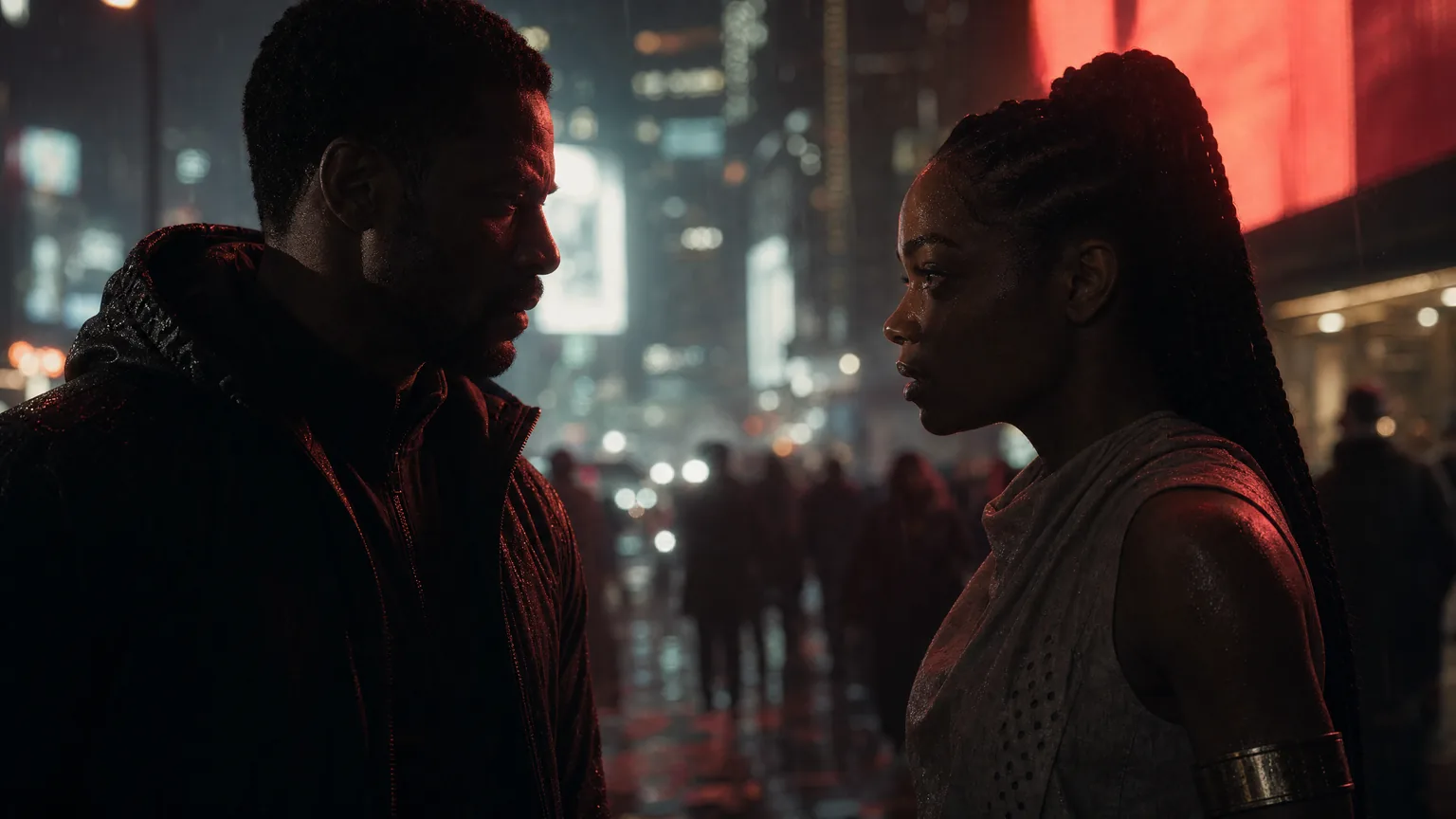
AI video review gets hard when every generated clip becomes a mystery file. A take may look impressive on its own, but the team still needs to know which shot it belongs to, what prompt created it, which references guided it, and whether it moves the scene forward.
This tutorial shows a simple review workflow for generated AI video takes. Use it after you’ve planned shots and started generating, or anytime a folder of exports has become too hard to judge.
The goal is to move from scattered clips to reviewable production decisions.
Key takeaways
- Review the take against the shot plan, not just against taste.
- Use reject, maybe, selected, and approved states consistently.
- Keep prompt, reference, model, settings, and review context attached to the take.
- Use dailies as a shared checkpoint for successful generated work.
- Regenerate with a specific change, not a vague request for something better.
Step 1: define the review standard before generation
The best review starts before the take exists.
For each shot, write a short standard that explains what the take needs to do. A review standard may include:
- Character identity and wardrobe continuity
- Location or prop readability
- Camera movement
- Start or end frame connection
- Performance beat
- Lighting or mood
- Audio direction
- Negative constraints
- Scene handoff
Keep the standard specific enough to settle debate. “The shot should feel cinematic” isn’t enough. “The take should hold on Mara’s face as she hears the signal, keep the jacket from scene two, and end with her looking toward the booth door” gives the team something to judge.
If the shot plan needs more structure, use the Seedance 2.0 shot planning workflow before the next generation pass.
Step 2: inspect the take in shot context
Start review by asking where the take belongs.
Check:
- Project
- Sequence
- Scene
- Shot code
- Shot title
- Prompt sections
- Attached characters, locations, props, wardrobe, images, or reference videos
- Duration, aspect ratio, resolution, and model settings
- Start and end frame anchors
This context keeps the review honest. A take can be beautiful and still wrong for the shot. It may introduce a continuity problem, miss the prop, change screen direction, or end on a frame that can’t connect to the next planned shot.
Lotix is built around this production hierarchy. Generated videos become takes attached to shots, and those takes can preserve prompt, reference, model, settings, and review context. The Lotix review workflow is designed for that move from isolated output to production review.
Step 3: mark the review state
Use states the same way every time.
Reject
Reject a take when it breaks the shot’s core job. Common reasons include wrong identity, unusable motion, poor prop readability, broken wardrobe continuity, unwanted objects, or a camera move that fights the scene.
Write the reason in production language. “Wrong” doesn’t help the next pass. “Reject because the signal case disappears after the first second” gives the next prompt edit a target.
Maybe
Use maybe for a take with value and a problem. It may have the right performance but weak ending composition, or great lighting with a wardrobe issue. Maybe is useful when the team needs comparison or when the take could inform a regeneration.
Selected
Select a take when it’s the best current option for the shot. A selected take may still need final approval later, but it can guide scene timeline planning, continuity decisions, or the next shot.
Approved
Approve a take when it’s ready to represent the shot in production review. Approval should mean the take satisfies the written standard closely enough for the current stage. It doesn’t mean final editorial lock.
Step 4: compare takes with one question at a time
When several takes are close, compare them against one decision at a time:
- Which take best sells the story beat?
- Which take protects the character?
- Which take keeps the prop readable?
- Which take connects best to the next shot?
- Which take creates the cleanest selected clip for scene review?
Don’t compare everything at once. Teams lose time when one person argues for performance, another argues for lighting, and a third is thinking about continuity. Name the deciding factor, then choose.
If none of the takes meet the standard, regenerate with a precise change. Tighten the action, swap a reference, reduce the shot’s demands, add a frame anchor, or revise the negative constraints.
Step 5: use dailies as the shared checkpoint
Dailies help the team see completed generation work without digging through every prompt attempt.
In Lotix, dailies collect successful generated takes for review with links back to shot and take context. That makes them useful for directors, producers, editors, and collaborators who need a clean view of progress.
Use dailies to ask:
- Which shots have selected or approved takes?
- Which scenes have enough coverage?
- Which continuity problems repeat?
- Which shots need another generation pass?
- Which selected clips should influence the next scene?
This is especially useful when the production has project roles, token spend, provider settings, and governance context to track. A dailies pass gives the team a production checkpoint instead of a pile of exports.
Step 6: decide the next action
Every review should end with one next action:
- Approve the take.
- Keep it selected while the team compares coverage.
- Mark maybe and generate a variation.
- Reject and revise the shot plan.
- Create a continuation shot from the take.
- Revisit the production asset if a reference keeps failing.
The action should be tied to evidence. If the take missed wardrobe continuity, fix the wardrobe reference or shot note. If the camera move is too busy, simplify the move. If the shot keeps failing because it tries to do too much, split it into two shots.
For a broader setup pass, use the AI video project workspace tutorial. It shows how to prepare scenes, shots, assets, roles, and review rules before the first dailies pass.
Frequently asked questions
What’s the difference between selected and approved?
Selected means the take is the best current option or useful for planning. Approved means it satisfies the shot’s review standard closely enough for the current production stage.
Should every generated clip go into dailies?
No. Dailies are most useful for successful generated takes that deserve review in production context. Failed or clearly rejected attempts shouldn’t clutter the checkpoint.
Can Lotix help with regeneration?
Yes. Lotix keeps the take tied to its shot plan, references, prompt, model, settings, and review decision, so the next pass can change the specific part that failed.
Does dailies review replace editing?
No. Dailies help teams review generated takes and scene progress. Lotix supports scene timeline planning, but it isn’t a full editing system or NLE replacement.
Review the take, not the file
The strongest AI video review workflow treats every output as a take with context. The team knows the shot, the references, the model settings, the review state, and the next action.
When you’re ready to review generated work as production takes instead of mystery clips, Start Creating in Lotix.