

How to Make AI Videos: Step-by-Step Workflow
Learn how to make AI videos with a practical workflow for planning, references, prompts, generation, review, dailies, and timeline planning.
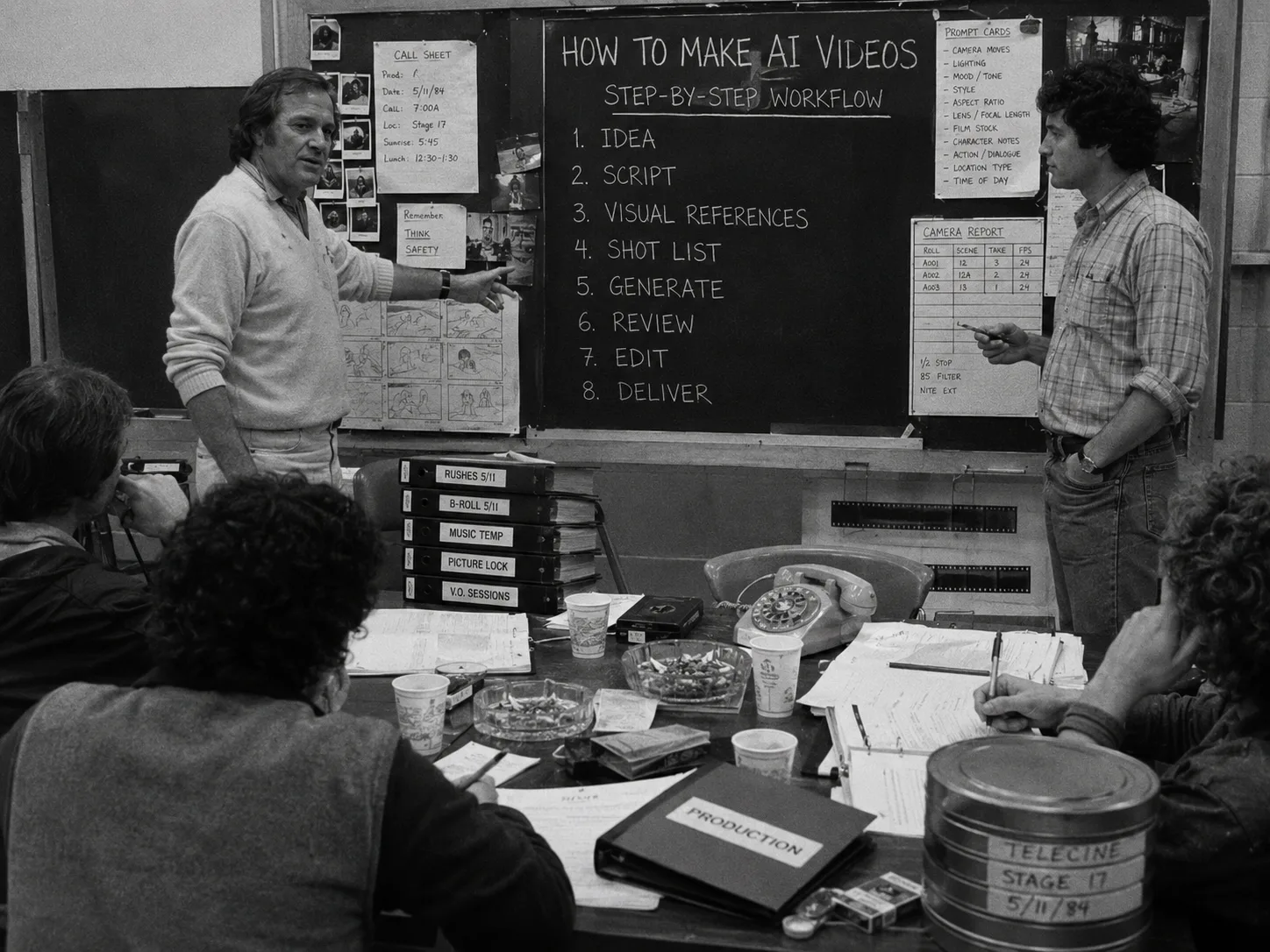
To make AI videos, start with a clear idea, collect references, break the story into shots, generate multiple takes, review those takes against written criteria, and plan the scene timeline with the strongest selections. Treat every clip as production material, not a lucky file.
That shift saves time. It also keeps the work easier to judge once the first few generations turn into twenty versions of the same shot. If you want the wider production context, pair this guide with AI in video production and the AI video project workspace tutorial.
Quick AI Video Workflow
An AI video workflow moves from idea to production assets, shots, generation, review, dailies, and scene timeline planning. The order matters because each step gives the next one better context, clearer references, and a stronger standard for deciding whether a generated take works.
| Step | What to do | Output |
|---|---|---|
| 1 | Define the job | A clear audience, format, duration, and success standard |
| 2 | Gather assets | Characters, locations, props, wardrobe, images, and reference videos |
| 3 | Pick workflow type | Text-to-video, image-to-video, reference-led generation, or workspace-led production |
| 4 | Plan shots | Shot codes, camera notes, action, references, and constraints |
| 5 | Generate takes | Multiple options tied to the shot brief |
| 6 | Review dailies | Reject, maybe, select, or approve takes with context attached |
| 7 | Plan the timeline | Selected clips ordered in scene context with trim notes |
The process does not need to feel heavy. A ten-second social clip may only need one scene and three shots. A short film, trailer, or campaign needs more structure because continuity, approvals, and handoff decisions pile up quickly.
Use the smallest workflow that preserves the decisions you cannot afford to lose.
Step 1: Choose The Job For The Video
Start by deciding what the AI video must accomplish, who will watch it, where it will run, and how long it should be. That answer shapes the format, shot count, pacing, references, review standard, and final handoff before you spend time generating.
Write a one-paragraph production brief before opening a generator:
- Purpose: Explain what the video should do.
- Audience: Name the viewer and their context.
- Format: Pick vertical, horizontal, square, or another delivery shape.
- Duration: Set a target length before planning shots.
- Tone: Name the emotional register in plain language.
- Success standard: Define what makes a take usable.
- Constraints: List anything the video must avoid.
Here is a simple brief:
Create a 20-second product teaser for founders who need fast campaign visuals. The scene should feel precise and restrained. The camera follows a prototype device across a worktable, then ends on a close-up as the indicator light turns on. Avoid exaggerated sci-fi effects, unreadable logos, and busy backgrounds.
That brief already does useful work. It names the viewer, the mood, the action, the ending frame, and the failure conditions. You can now plan shots instead of asking a model for a vague “cinematic product video.”
Step 2: Build References Before You Prompt
Build the visual world before you write prompts. References tell the generator what should stay consistent, and they tell reviewers what to protect. Save characters, locations, props, wardrobe, images, frame anchors, and reference videos before the first serious generation pass.
Treat references as production assets, not inspiration clutter. Each one needs a job.
| Reference type | What it controls | Practical note |
|---|---|---|
| Character | Identity, silhouette, expression, wardrobe state | Use a stable source for recurring people or fictional characters |
| Location | Layout, era, lighting, geography, surface detail | Write what must remain readable on camera |
| Prop | Scale, material, markings, handling | Add close-up references when the object drives the shot |
| Wardrobe | Color, fit, texture, damage, continuity | Record scene-specific changes as they happen |
| Image reference | First frame, last frame, composition, style | Use anchors when the shot must start or end precisely |
| Reference video | Motion, camera timing, blocking, staging | Use clips to guide movement, not just look |
For recurring characters, read the character consistency guide. If your video starts as boards or panels, the AI storyboard examples guide can help turn those visuals into shot intent.
Reference Checklist For AI Video
A useful reference checklist names what each file should control, where it appears, and what reviewers should reject if it drifts. That keeps the team from reusing attractive references that solve the wrong problem or conflict with the shot’s actual story job.
Before generation, check:
- Does each recurring character have a clear identity source?
- Does wardrobe match the scene order?
- Does each location reference show layout, not just mood?
- Do props have scale and handling notes?
- Do frame anchors match the intended first or last composition?
- Do reference videos show useful motion, timing, camera behavior, or blocking?
- Does every sensitive or client-provided asset have the right review context?
In Lotix, teams can organize production assets for characters, locations, props, wardrobe, and reference videos inside the project. Character reference sheets can be generated from source images and character profile data, while locations, props, and wardrobe use profile data, source images, and manual reference bundles. That keeps the reference library tied to the production instead of scattered across downloads.
Step 3: Pick The Workflow Category
Choose the AI video workflow category based on your source material and review needs. A blank idea, a finished image, a presenter script, and a multi-shot scene all need different setup, even when the final output looks like one video file.
Use this decision table before choosing tools:
| Workflow category | Use it when | Watch for |
|---|---|---|
| Text-to-video | You have a written idea and no fixed image source | Vague prompts often produce weak continuity |
| Image-to-video | You have a still frame, concept image, board, or product image | Motion may fight the original composition |
| Reference-led generation | You need start/end frames, motion references, or consistent visual cues | References need clear roles or they confuse the shot |
| Avatar or explainer workflow | You need a presenter, narration, or instructional format | The piece may feel template-driven without strong direction |
| Editing and finishing tools | You need captions, pacing, audio, color, or delivery exports | These tools usually do not preserve generation context |
| Production workspace | You need scenes, shots, assets, takes, roles, approvals, and dailies | The value comes from structure around generation |
For a one-off clip, a simple generator plus an editor may work. For a scene with recurring characters, props, and approvals, build the workspace first. The moment a team needs to remember why a clip exists, the workflow has moved past prompt experimentation.
Step 4: Turn The Idea Into Shots
Turn the idea into shots before generation so every prompt has one clear job. A shot plan should define subject, action, camera, duration, aspect ratio, resolution, references, frame anchors, constraints, and review criteria in language the whole team can judge.
A short scene might break down like this:
| Shot code | Shot job | Direction |
|---|---|---|
| A001 | Establish the workspace | Wide shot, quiet practical light, prototype on table |
| A002 | Show the handoff | Medium shot, hand places device beside open notebook |
| A003 | Reveal the signal | Close-up, indicator light turns on, end on clean product frame |
That breakdown gives each generation a narrow target. It also protects coverage. If shot A003 works but A002 fails, you regenerate the handoff instead of rebuilding the whole video from scratch.
Lotix uses this production grammar directly: projects hold sequences, scenes, shots, generated takes, and dailies. For a Seedance-specific version of this process, use the Seedance 2.0 shot planning workflow.
Shot Brief Template
A strong shot brief gives the generator a filmable moment, not a paragraph of style words. It separates story intent, subject, action, camera, lighting, references, frame anchors, negative constraints, and review criteria so the output can be judged without guessing.
Use this structure:
| Field | Fill it in |
|---|---|
| Shot code | A short label such as A001 or SC03-SH02 |
| Shot title | A plain description of the moment |
| Duration | Target clip length |
| Aspect ratio and resolution | Match delivery needs or project standard |
| Subject | Who or what the viewer follows |
| Action | What changes during the shot |
| Environment | Where the shot takes place |
| Camera | Framing, movement, height, lens feel, and pace |
| Lighting | Practical sources, contrast, color, time of day |
| References | Characters, props, wardrobe, frame anchors, reference videos |
| Negative constraints | What must not appear or drift |
| Review criteria | What makes the take selected or rejected |
Prompt language can stay natural:
Close-up of the prototype device on a matte black worktable. A hand enters from frame left and presses the recessed switch. The indicator light turns on softly. Locked-off camera, shallow depth of field, practical desk lamp reflection, no extra logos, no sparks, no dramatic smoke. End on a clean product frame.
The Seedance 2.0 prompt guide shows how to make this type of shot direction more generation-ready.
Step 5: Generate AI Video Takes
Generate several takes for each shot and keep them tied to the original brief. The first output may contain a useful camera move, expression, or ending frame, but review works better when the team compares variations against the same shot plan.
Use a repeatable generation pass:
- Confirm the shot brief.
- Attach the right references.
- Set duration, aspect ratio, resolution, and any model settings the workflow exposes.
- Generate a small batch of takes.
- Record what changed between versions.
- Stop when you have enough evidence to review.
Lotix currently centers video generation support on Seedance 2.0 and Seedance 2.0 Fast. In the Lotix workflow, shot plans can include prompts, image references, video references, duration, aspect ratio, resolution, frame anchors, and model settings, then the generated outputs return as reviewable takes.
That detail matters. A take should carry its prompt, settings, references, and shot context with it. Otherwise, a usable clip becomes hard to repeat, continue, or explain during review.
Step 6: Review Takes And Build Dailies
Review each generated clip as a take tied to a shot, then move useful work into dailies. This keeps the team focused on story, continuity, and approvals instead of debating exported filenames or trying to remember which prompt created which result.
Use consistent review states:
| Review state | Use it when | Next action |
|---|---|---|
| Rejected | The take fails the shot brief | Regenerate with a specific correction |
| Maybe | The take has one useful element | Hold it for comparison or reference |
| Selected | The take leads the current options | Add it to dailies or scene review |
| Approved | The take meets the team’s standard | Carry it into timeline planning and handoff |
Review against the written criteria, not personal taste alone. Ask:
- Does the take serve the shot’s story job?
- Did the character, wardrobe, prop, or location drift?
- Does the camera move match the plan?
- Does the shot start or end on the needed frame?
- Does the clip create a useful handoff to the next shot?
- Should the team regenerate, continue from the take, or approve it?
Dailies give the team a shared checkpoint. In Lotix, successful generated takes can collect in dailies with links back to shot and take context. The AI video takes and dailies tutorial walks through that review habit step by step.
Step 7: Plan The Scene Timeline
Plan the scene timeline after selected takes exist so the team can check order, pacing, trims, and continuity before final post work. Timeline planning helps directors and editors see whether approved clips actually connect as a coherent scene during review.
At this stage, keep the workspace focused on scene planning rather than final editing. Use timeline planning to answer production questions:
- Which selected takes belong in the scene?
- What order serves the beat?
- Where should each clip trim in and out?
- Does a frame handoff need another generation pass?
- Does the scene have enough coverage?
- Which clip should guide the next continuation shot?
Lotix supports scene timeline planning and review for selected playable clips, including trim in/out points, playback controls, frame stepping, cached media, and saved clip trims. Final editing, sound, color, VFX, exports, and delivery still belong in post-production tools.
That split keeps the workflow honest. Lotix helps teams plan, generate, review, and organize AI video takes, while post-production tools handle final finishing.
Example: From Idea To Reviewable AI Video
A practical AI video example turns one idea into assets, shots, generated takes, review notes, dailies, and a scene timeline. Seeing those production layers together makes the workflow much easier to repeat than a single prompt copied into a generator.
Imagine the brief:
A 30-second teaser shows a courier discovering a glowing keycard in an empty transit station, then hearing a train arrive behind a locked platform gate.
Turn it into production pieces:
| Production layer | Example decision |
|---|---|
| Idea | Courier discovers a keycard and realizes the station is not empty |
| Character asset | Courier with navy jacket, messenger bag, tired expression |
| Location asset | Closed underground transit station, wet tile, dim overhead lights |
| Prop asset | Glowing keycard with a simple geometric mark |
| Wardrobe | Navy jacket stays zipped until the final shot |
| Reference video | Slow push-in toward platform gate for timing and blocking |
| Scene | Night station discovery scene |
Then plan shots:
| Shot | Brief | Review standard |
|---|---|---|
| A001 | Wide shot of empty station, courier enters frame right | Station geography reads clearly |
| A002 | Medium shot as courier spots the keycard near a bench | Jacket and bag stay consistent |
| A003 | Close-up of keycard glowing in the courier’s hand | Mark remains readable |
| A004 | Over-shoulder shot toward locked platform gate | End frame points toward the next scene |
Generate multiple takes per shot. Reject the take where the courier’s jacket changes color. Mark maybe on a version where the keycard glow works but the hand position feels awkward. Select the take where the close-up holds the mark clearly. Approve it after dailies if it connects with A004.
Now the scene has memory. The next generation pass can use the selected close-up, the location asset, and the gate direction rather than rebuilding the whole idea from scratch.
Common AI Video Problems And Fixes
Most AI video problems come from weak setup, unclear references, or review decisions made too late. Fix the workflow before blaming the model: narrow the shot, name the failure, adjust references, regenerate with purpose, and compare takes against the written brief.
| Problem | Likely cause | Fix |
|---|---|---|
| Character identity drifts | No stable character source or too many conflicting images | Create a clearer character reference and reduce competing cues |
| Wardrobe changes | Wardrobe lives only in prompt text | Save wardrobe as a reusable asset and mention scene state |
| Motion feels strange | Prompt describes style but not action mechanics | Add reference video or clearer action timing |
| Camera wanders | Shot asks for too many moves | Pick one camera behavior and define the start or end frame |
| Prop disappears | Prop lacks scale, handling, or close-up reference | Add prop notes and make it part of the review standard |
| Scene lacks continuity | Shots were generated as standalone clips | Plan the scene, then generate shot by shot |
| Team cannot choose | No review criteria | Decide reject, maybe, selected, and approved rules before review |
| Folder gets messy | Downloads are detached from prompts and references | Use a workspace that keeps takes tied to shots |
Small fixes work better than giant prompt rewrites. Change one thing at a time when you can: reference order, camera instruction, action verb, frame anchor, duration, or negative constraint. Then compare the next take against the previous one.
Frequently Asked Questions
AI video FAQs usually come down to process: how to start, how much structure beginners need, why first outputs fail, and what happens after generation. Strong answers keep the workflow grounded in shots, references, takes, review, and practical timeline planning.
How Do I Create AI Videos?
Create AI videos by writing a clear brief, gathering visual references, choosing a workflow category, breaking the idea into shots, generating several takes per shot, reviewing those takes against criteria, and planning selected clips in scene order before final post work.
The shortest version is: brief, assets, shots, takes, dailies, timeline. Skip steps only when the project can survive without them.
Are AI Videos Easy To Make?
Simple AI videos can be easy to generate, but good AI videos still require direction. The hard part is not producing motion; it is preserving intent, references, continuity, review decisions, and handoff context after the first few versions arrive together.
Beginners should start with one short scene and three shots. That gives you enough structure to learn without building a giant production board.
Which AI Video Workflow Should Beginners Use?
Beginners should start with an image-to-video or tightly written text-to-video workflow, then review takes against a short shot brief. A fixed image or narrow prompt reduces ambiguity, making it easier to understand exactly what changed between generation passes on the next attempt.
Once a project has recurring characters, multiple shots, or team review, move into a production workspace so the work keeps its memory.
What Should I Do After Generation?
After generation, review every clip as a take, mark the useful ones, collect successful options in dailies, and plan the scene timeline with selected clips. Then hand approved material to post-production for finishing, sound, color, captions, exports, and delivery steps.
Do not bury strong takes in a downloads folder. Attach the decision to the shot while the reasoning is still fresh.
Create Your Free Lotix Workspace
Lotix helps AI film teams turn ideas into organized projects, production assets, shots, Seedance takes, review states, dailies, and scene timeline planning. Use it when a project needs real production structure around generation instead of another folder of disconnected clips.
Start with one scene. Create the project, add the assets, plan the shots, generate Seedance 2.0 or Seedance 2.0 Fast takes, review them in dailies, and use timeline planning to decide the next pass.
Sign up free in Lotix.
Free workspace
Create your free Lotix workspace.
Plan your shots, manage your assets, generate takes with built-in Seedance, and keep generation spend visible with monthly tokens inside Lotix.
- Plan shots around scenes, references, and review needs
- Manage characters, locations, props, and production assets
- Generate Seedance takes with visible token usage