

Text to Video AI: Prompt Workflow and Tool Guide
Learn how text-to-video AI works, how to write stronger video prompts, and how to review generated takes in a real production workflow.
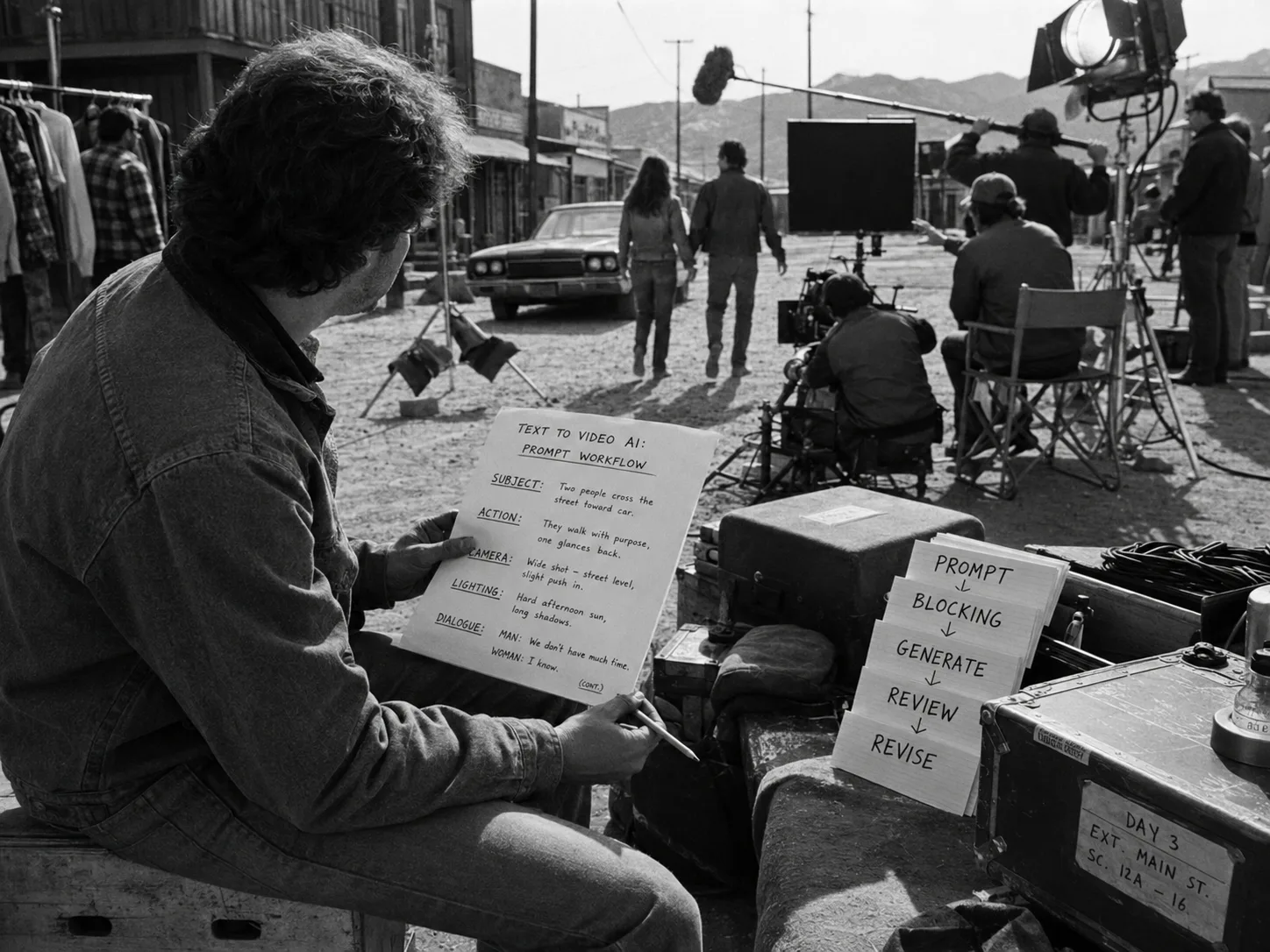
Text to video AI turns a written prompt into a generated video clip, but the prompt works best when it starts as a shot plan. Define the shot’s job, references, frame anchors, constraints, and review criteria before you generate.
The basic move is simple. Stop asking for “a cinematic video” and start directing one take at a time. For broader production context, read AI in video production. For Seedance-specific wording, pair this guide with the Seedance 2.0 prompt guide and the Seedance 2.0 shot planning workflow.
Key Takeaways
Text-to-video work improves when teams treat prompts as shot plans. Write one task per shot, attach references only with a purpose, define negative constraints, generate takes, and review those takes in dailies before deciding what belongs in the production record.
- Prompts need a job: one subject, one action, one camera idea, one review target.
- References need roles: character, location, prop, wardrobe, frame anchor, or motion guide.
- Negative constraints need focus: remove the few details that would break the shot.
- Outputs need review states: rejected, maybe, selected, or approved.
- Production needs memory: prompts, references, settings, takes, and approvals should stay connected.
What Is Text to Video AI?
Text to video AI generates video from written instructions. The prompt usually describes the subject, action, camera, setting, style, duration, and constraints, then the model creates a clip that needs human review before anyone treats it as a usable production take.
A simple prompt may create a quick look test:
A detective walks through a rainy alley at night, cinematic lighting.That can work for exploration. It falls apart when the shot needs continuity, a clear edit point, or a repeatable review standard. A production prompt adds context:
Scene 03, Shot 04. Medium close-up of Mara stepping into a narrow rain-soaked alley,
dark green jacket from the character reference, signal case held at chest height.
Slow push-in from eye level as she hears a metallic sound off screen.
Use the alley location reference for brick texture and practical neon.
Start frame: Mara at frame left, alley depth visible.
End frame: Mara turns toward the sound, case still visible.
Negative constraints: no extra people, no daylight, no clean modern storefronts,
no wardrobe color changes.
Review criteria: usable only if the jacket, case, and ending turn stay readable.
The second version gives the model a clearer target. It also gives the team a fair way to reject, revise, select, or approve the result.
How Text Prompts Become Video Takes
A text prompt becomes useful when it moves through a production loop: write the shot plan, attach references, generate one or more outputs, review them as takes, mark decisions, and revise the plan based on the specific miss instead of resetting from scratch.
Use this loop:
- Write the shot plan: name the scene, shot code, story beat, subject, action, camera, lighting, and format.
- Attach references: add only the assets that should guide identity, setting, props, wardrobe, motion, or frame position.
- Add frame anchors: use start and end frames when composition affects the edit.
- Write negative constraints: list the details that would break continuity or tone.
- Generate takes: create options from the same shot target.
- Review in context: judge each take against the written standard, not just taste.
- Mark the decision: reject, maybe, select, approve, regenerate, or continue from a take.
- Move selected work into dailies: review successful generations with their shot context attached.
That loop matters because a good-looking clip can still fail the production. It may change wardrobe, lose a prop, drift from the camera move, or end on a frame that will not cut into the next shot.
What a Text Prompt Can Control
A text prompt can guide the visible subject, action, framing, camera movement, lighting, environment, tone, format, and exclusions. It cannot guarantee exact physics, perfect identity, stable continuity, or clean edit handoff unless the team supports the prompt with references and review.
| Prompt area | What to write | What to review |
|---|---|---|
| Subject | Who or what the camera follows | Identity, scale, wardrobe, prop handling |
| Action | What changes during the shot | Clear motion, readable beat, believable timing |
| Camera | Frame size, angle, movement, lens feel | Whether motion supports the scene |
| Lighting | Practical source, contrast, color, atmosphere | Mood, continuity, visibility |
| Environment | Location layout and details that must remain | Geography, era, unwanted objects |
| References | Assets and the job each one performs | Whether the model followed the right source |
| Frame anchors | Start or end composition | Cut point, continuity, handoff |
| Negative constraints | Details to avoid or keep unchanged | Continuity breaks and unwanted additions |
| Review criteria | What makes the take usable | Reject, maybe, selected, or approved state |
Keep each area short. The prompt should help the model and the reviewers. If a line does not change the frame, motion, reference use, or approval decision, cut it.
Text to Video AI vs Other Video Workflows
Text to video starts from language. Image-to-video starts from a still or reference image. Video-to-video transforms existing footage. AI editing tools assemble, trim, caption, or polish clips. The right choice depends on the shot’s source material, creative risk, and review target.
| Workflow | Starting point | Best fit | Watch for |
|---|---|---|---|
| Text to video AI | Written prompt | Fast visual tests, original shot concepts, simple action beats | Prompt drift, invented details, weak continuity |
| Image-to-video | Still image or reference frame | Character, prop, location, or composition continuity | Motion limits, mismatched action, reference overreliance |
| Video-to-video | Existing footage | Restyling, transformation, controlled motion source | Source quality, rights review, style drift |
| AI editing | Generated or recorded clips | Assembly, captions, trimming, polish, delivery versions | Editing cannot fix every failed generation |
| Production workspace | Project, assets, scenes, shots, takes | Team review, reusable references, dailies, approvals | It needs clear creative inputs from the team |
Text-to-video is often the fastest way to start. It is rarely the last step. The output still needs review, selection, editing, and a record of how the team made decisions.
A Shot-Plan-First Prompt Framework
A shot-plan-first framework turns a loose instruction into production fields. Start with the shot’s job, then define subject, action, camera, lighting, references, frame anchors, negative constraints, and review criteria so every generated take has a fair standard during dailies review.
Use these fields before you generate:
| Field | What it answers |
|---|---|
| Scene | Where this shot belongs in the project |
| Shot code | How the team identifies the take later |
| Shot job | Why the shot exists |
| Subject | Who or what the viewer tracks |
| Action | What changes during the clip |
| Framing | Close-up, medium, wide, insert, over-the-shoulder, or another clear frame |
| Camera | Angle, height, movement, lens feel, speed |
| Lighting | Source, contrast, color temperature, atmosphere |
| Environment | Location details that should stay readable |
| References | Character, location, prop, wardrobe, image, frame, or video references |
| Frame anchors | Start frame, end frame, or both |
| Format | Duration, aspect ratio, resolution, music preference |
| Negative constraints | What must stay out or stay unchanged |
| Review criteria | What makes the take reject, maybe, selected, or approved |
Turn a Weak Prompt Into a Production Prompt
The fastest upgrade is not a prettier sentence. Replace vague mood words with shot intent, concrete action, named references, camera behavior, constraints, and review criteria. That gives the model direction and gives reviewers a clean way to judge the output.
Weak prompt:
Make a dramatic shot of a woman in a sci-fi room discovering a strange device.Production prompt:
Scene 02, Shot 06. Tight medium shot of Mara in the station control room.
Shot job: reveal that the signal case is active.
Action: Mara notices a pulsing blue light inside the closed case and freezes.
Camera: slow push-in from eye level, steady, no handheld shake.
Lighting: low tungsten practical from camera left, blue glow from the case.
References: use Mara character reference for face and jacket, station room
reference for wall panels, signal case prop reference for shape and scale.
Frame anchor: end on Mara looking down at the case, case light visible.
Negative constraints: no extra people, no daylight, no new props, no smiling.
Review criteria: select only if Mara's jacket stays consistent, the case stays
closed, and the final frame can cut to a prop insert.
The revised prompt does not just sound better. It tells the team what to test after the clip arrives.
Use the Reusable Text-to-Video Prompt Template
Use a reusable template when the team needs repeatable shots, not just experiments. The template should keep story intent, visual direction, references, format settings, exclusions, and approval rules separate so the next revision targets the real failure after take review.
Project:
Scene:
Shot code:
Shot job:
Subject:
Action:
Framing:
Camera:
Lighting:
Environment:
Character references:
Location references:
Prop and wardrobe references:
Frame anchors:
Reference video or motion note:
Duration, aspect ratio, and resolution:
Music or audio direction:
Negative constraints:
Review criteria:
Use the fields you need. Do not turn the template into a wall of text. A short line in the right field beats a long sentence that hides camera, action, and review criteria in one block.
Text to Video AI Prompt Examples
Strong examples show how text prompts change by job. A product shot needs clarity and brand safety. A cinematic scene needs performance and coverage. An explainer needs readable motion. A social ad needs one visual idea and a clean hook.
Product Demo Prompt
A product demo prompt should protect the object, handoff, and readable benefit. Keep the frame simple, name the product action, control the surface and lighting, and reject takes where the item changes shape, logo placement, scale, or handling during motion.
Shot job: show the travel mug sealing cleanly after one hand turns the lid.
Subject: matte black travel mug on a wet kitchen counter, hand enters frame.
Action: hand twists the lid once, mug stays upright, small water droplets remain visible.
Camera: locked-off close-up, slight top angle, product centered.
Lighting: soft window light from left, gentle counter reflection.
Negative constraints: no steam, no extra hands, no changing logo placement,
no warped lid, no spill.
Review criteria: approve only if the lid action is readable and the mug shape
stays consistent through the full take.
Cinematic Scene Prompt
A cinematic scene prompt should serve one beat. Define the character, emotion, blocking, lens feel, camera move, location, practical light, continuity references, and end-frame need. Reject takes that look impressive but miss the story action or cut point during review.
Shot job: hold on Mara as she decides not to answer the radio.
Subject: Mara in dark green jacket, tired but alert, framed chest-up.
Action: radio crackles off screen, she reaches toward it, then pulls her hand back.
Camera: slow push-in, eye-level, restrained.
Lighting: dim station practicals, cool radio glow on her fingers.
References: Mara character reference, jacket wardrobe reference, station booth location.
Frame anchor: end with her hand hovering above the radio.
Negative constraints: no extra people, no tears, no bright daylight, no new badges.
Review criteria: selected only if the hesitation reads clearly and the final
hand position can connect to the next shot.
Explainer Prompt
An explainer prompt should make motion legible. Use simple staging, clear transitions, uncluttered backgrounds, restrained camera moves, and visual elements that match the script. Review the take for comprehension first, then style, because a beautiful unclear explainer still fails onscreen.
Shot job: explain how three loose clips become organized takes.
Subject: clean desktop with three video thumbnails moving into labeled shot folders.
Action: thumbnails slide into Scene 01, Shot 01, Shot 02, and Dailies labels.
Camera: overhead view, no camera movement.
Lighting: even neutral light, high readability.
Style: simple production-board animation, minimal texture.
Negative constraints: no tiny unreadable text, no extra folders, no busy background.
Review criteria: approve only if the flow from clip to shot to dailies is clear
without narration.
Social Ad Prompt
A social ad prompt should stay narrow. Pick one hook, one subject, one action, one camera idea, and one end frame. The prompt should leave room for captions, platform edits, and approvals without asking one generated clip to carry a whole campaign.
Shot job: create a six-second hook for a production workflow ad.
Subject: director at a desk surrounded by unlabeled AI video files.
Action: scattered clips snap into a clean shot board labeled scenes, shots, takes.
Camera: quick push-in from wide desk view to organized board.
Lighting: high-contrast office practicals, clear screen readability.
End frame: empty space at top for caption overlay.
Negative constraints: no brand logos, no unreadable interface text, no cluttered faces.
Review criteria: keep only if the before-and-after organization reads in one glance.
How to Compare Text to Video AI Tools
Compare tools by the workflow they support, not by demo clips alone. Look at input types, prompt controls, reference support, review history, output handling, roles, governance needs, and how easily the team can trace a generated clip back to its shot plan.
| Evaluation area | Question to ask | Why it matters |
|---|---|---|
| Input types | Does the tool support text only, or can it use images, frames, or video references? | References can carry visual intent that words miss. |
| Prompt structure | Can the team keep prompt sections readable? | Clean sections make revisions faster. |
| Frame anchors | Can the workflow guide a start frame, end frame, or both? | Anchors help shots connect to nearby edits. |
| Negative constraints | Can the prompt state what should not appear or change? | Constraints protect continuity and tone. |
| Take history | Can reviewers see what created each output? | A useful take needs prompt and settings context. |
| Review states | Can the team mark reject, maybe, selected, or approved? | Shared states reduce repeated debate. |
| Dailies | Can successful takes move into a shared review view? | Dailies help teams compare work in scene context. |
| Roles and governance | Can the workspace control access and preserve a review trail? | Production work needs responsibility around decisions. |
The best tool for a one-off concept may not fit a scene with recurring characters, references, and approvals. Match the tool to the workflow you actually need to run.
Review Generated Takes Like Dailies
Review turns text-to-video output into production evidence. Mark each clip as rejected, maybe, selected, or approved, then record why. The decision should reference the original shot intent, attached references, constraints, and whether the clip can cut against nearby shots cleanly.
Use this review table:
| Review state | Use it when | Next action |
|---|---|---|
| Unreviewed | The take has not entered team review | Inspect it against the shot plan |
| Rejected | The take breaks the shot’s job, continuity, reference, or edit need | Revise the prompt, swap a reference, or split the shot |
| Maybe | The take has one useful quality but still misses something | Compare it against new takes or use it as revision evidence |
| Selected | The take leads the current options for that shot | Review it beside nearby shots and dailies |
| Approved | The take satisfies the current shot standard | Keep it attached to the project record and dailies context |
Good review language stays specific:
- “Reject because the case disappears after the first second.”
- “Maybe because the lighting works, but wardrobe changes.”
- “Selected because the hesitation reads better than take 03.”
- “Approved for dailies because the end frame connects to Shot 07.”
For a focused review process, use the AI video takes and dailies tutorial.
Where Lotix Fits in Text to Video AI
Lotix fits when text prompts need production memory. Teams can organize projects, production assets, sequences, scenes, shots, generated takes, review states, and dailies, then use Seedance-focused generation paths while keeping references, frame anchors, constraints, and settings tied to the work.
The natural limit of a prompt box appears after the first few good clips. Someone needs to know which scene the take belongs to, which reference guided it, which settings created it, and whether the director, producer, editor, or collaborator approved it.
Lotix gives that work a production structure:
- Production assets: reusable characters, locations, props, wardrobe, and reference videos.
- Shot Composer: structured shot plans with duration, aspect ratio, resolution, music preference, prompt sections, negative constraints, references, frame anchors, and advanced settings.
- Seedance-focused generation: current video generation support centers on Seedance 2.0 and Seedance 2.0 Fast.
- Take review: generated clips become takes tied to the shot, prompt, references, settings, and review state.
- Dailies: successful generated takes collect in review views with links back to shot and take context.
- Roles and governance: teams can use project roles, token billing workflows, and governance layers around generation.
That bridge matters when text prompts become a real production pipeline. The question changes from “Can this prompt make a clip?” to “Can our team direct, review, and reuse the work?”
Frequently Asked Questions
Text-to-video questions usually come down to scope: what language can control, when references help, how long prompts should be, how teams handle no-cost tests, and what review process makes generated clips usable beyond a quick visual experiment for production work.
Is There a Free Text to Video AI Generator?
No-cost text-to-video tools can help with concept tests, but treat those outputs as evaluation material until the team records the prompt, references, and review result. For production, the stronger question is whether the workflow preserves prompts, references, takes, and approvals.
A free test can still teach you plenty. Use it to test shot wording, camera language, reference needs, and negative constraints. Keep the output separate from approved production material until the team reviews it against the same standard as any other take.
Can Text to Video AI Make Realistic Video?
Text-to-video systems can produce convincing motion, lighting, and camera behavior for some prompts, but realism varies by model, shot complexity, references, and review discipline. Simple focused shots usually work better than crowded scenes with several actions and continuity demands combined.
Realism also depends on the job. A quiet close-up, product turn, prop insert, or atmospheric establishing shot may respond well to clear direction. A complex scene with several characters, precise blocking, and exact physics needs tighter planning and more review.
How Long Should a Text to Video AI Prompt Be?
A useful prompt should be long enough to direct the shot and short enough to revise. Separate intent, subject, action, camera, references, constraints, and review criteria. Cut ornamental language that does not change the frame, motion, or approval decision later.
Use sections instead of one giant paragraph. When a take fails, you can adjust the camera line, reference role, negative constraint, or frame anchor without rewriting everything the team already agreed on.
Should I Use References With Text Prompts?
Use references when words alone cannot protect identity, wardrobe, location, prop shape, motion, timing, or start and end frames. A reference should have a named job in the prompt, otherwise it may distract review instead of clarifying the shot plan.
For example, a character reference can guide face, silhouette, and wardrobe. A prop reference can protect scale and markings. A reference video can guide camera timing or blocking. Do not attach assets just because they look good.
Can Chat-Style AI Tools Generate Video From Text?
A chat-style interface may connect text prompts to video generation, but the interface matters less than the production record. Teams still need shot plans, references, generated takes, review decisions, and dailies so a useful clip does not become an isolated file.
Treat chat-style generation as one possible entry point. If the clip belongs to a larger project, move the result back into the same shot, take, and review process as any other generated output.
Can Text to Video AI Be Used for Commercial Videos?
Text-to-video output can support commercial work only when the team controls the production process around it. Check the tool’s terms, asset permissions, likeness use, music, brand references, client rules, and review trail before delivery, then keep approvals attached to the project.
That check belongs inside the workflow, not after the final export. The team should know which references guided each take, who approved it, and whether the selected clip matches the project standard.
Does Lotix Generate Every Kind of AI Video?
No. Lotix is an AI film production workspace, not a universal provider or format layer. Current video generation support centers on Seedance 2.0 and Seedance 2.0 Fast, with prompts, references, frame anchors, settings, takes, review states, and dailies organized around shots.
Use Lotix when the work needs production structure around AI generation: project assets, shot plans, Seedance-focused takes, review states, dailies, roles, tokens, and governance workflows.
Apply With a Real Shot Plan
Start with one scene, one shot, and one written standard for a usable take. Build the prompt from that plan, generate options, review them honestly, and keep the keeper attached to its references, settings, and approval state for dailies review.
Open a new project, add the production assets that matter, write one structured shot prompt, and generate takes against a review standard. When the first output lands, do not judge it as a standalone clip. Mark it as a take.
Ready to turn text prompts into organized shot plans, Seedance-focused takes, and dailies? Sign up free in Lotix.
Free workspace
Create your free Lotix workspace.
Plan your shots, manage your assets, generate takes with built-in Seedance, and keep generation spend visible with monthly tokens inside Lotix.
- Plan shots around scenes, references, and review needs
- Manage characters, locations, props, and production assets
- Generate Seedance takes with visible token usage