

AI Video Editing: Tools, Workflows, and the Perfect Handoff
Learn how AI video editing tools speed up rough cuts, cleanup, captions, and handoffs without replacing real post-production judgment.
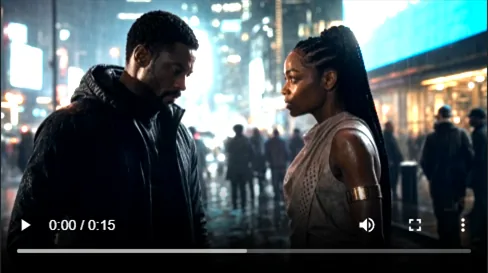
AI video editing is finally doing what it was always supposed to do: take the tedious, repetitive grind off the editor’s plate. Rough cuts. Audio cleanup. Auto-captions. Clip extensions. Endless social cutdowns.
But let’s be clear about what AI isn’t doing. The final calls on story rhythm, pacing, sound mixing, color grading, and delivery specs still require an editor’s taste and judgment.
AI-generated footage makes this division of labor even more important. Yes, a good prompt can produce a stunning clip, but that clip still needs to be curated, trimmed, checked for continuity, and handed off cleanly into post. Otherwise, you’re just drowning your editor in mystery files.
Key takeaways
AI editing is a toolkit, not a single feature. It’s a collection of tasks focused on cutting, cleaning, captioning, formatting, and repairing video. The smartest workflows keep generated clips tied to their original intent, then send only approved selects into the timeline.
- AI rules the first pass: Give it transcripts, rough assemblies, aspect-ratio reframes, and background noise removal.
- Generation isn’t editing: A generated clip is raw material. It still needs story placement, sound design, and color matching.
- Context is everything: Generated takes shouldn’t travel alone. Prompts, reference images, shot codes, and review notes need to travel with the clip.
- Lotix fits before final post: Plan shots, generate Seedance-focused takes, review dailies, and hand editors an organized package.
What “AI video editing” actually means
AI video editing gets muddy because every software company uses the phrase to sell something different. For one app, it means prompt-based video generation. For another, it means cutting filler words from a transcript. For professional NLEs, it means AI-powered features built directly into the timeline.
At its core, AI editing uses machine learning or generative models to accelerate the friction points of post-production. It works best when it clears the heavy brush, leaving the editor with more time to make the creative decisions that actually matter.
Here’s how the work breaks down:
| Editing job | What AI can handle faster | What still requires human judgment |
|---|---|---|
| Rough cuts | Transcript text edits, first assembly, silence removal, basic clip selection | Story order, rhythmic pacing, performance evaluation, and coverage gaps |
| Cleanup | Speech enhancement, background noise reduction, rotoscoping, background removal | Overall mix balance, AI audio artifacts, and room tone |
| Captions | Auto-transcription, translation, and initial styling | Line-break timing, brand-rule adherence, and absolute accuracy |
| Clip repair | Short frame extensions and fixing awkward handles | Deciding whether the AI extension feels natural in context |
| Repurposing | Aspect-ratio reframing, social cutdowns, and title variants | Platform-specific hooks, pacing adjustments, and final approvals |
| Generated footage | Prompt revisions, alternate takes, and shot continuations | Shot intent, continuity checks, selects, and clean timeline handoffs |
Where popular AI video editors fit
Most tools on the market fit into one of five categories: design editing, prompt-first generation, transcript editing, social editing, or professional NLEs with AI features. Start by defining the job you need done, then pick the tool.
Check each tool’s export limits and watermarking rules before you commit it to a client project.
| Tool or platform | Best fit for | Keep in mind |
|---|---|---|
| Canva | Fast AI clips, templates, avatars, quick trims, and MP4 sharing | Canva’s Create a Video Clip generates up to 8-second 16:9 videos. Commercial use depends on Canva’s AI Product Terms and Terms of Use. |
| InVideo AI | Prompt-driven edits to scripts, media, music, voiceovers, and social formats | Free users hit weekly generation and export limits, and free exports carry InVideo and stock-media watermarks. |
| Adobe Premiere Pro | Professional timeline work using Generative Extend, Text-Based Editing, and auto-captions | Adobe lists specific limits for Generative Extend, including restrictions around spoken dialogue and some media types. |
| Descript | Talking-head, podcast, interview, and social edits driven by transcript editing | Features like Studio Sound require AI credits on current plans and an active internet connection to process. |
| CapCut | Fast social edits, auto-subtitles, background removal, and mobile-friendly publishing | Feature names and paywalls shift often. Confirm exact export specs and watermark rules before client delivery. |
| DaVinci Resolve | Final editing, advanced color grading, VFX in Fusion, and pro audio in Fairlight | Resolve shows why finishing is bigger than AI cleanup. It uses dedicated workspaces to finish a project properly. |
A practical AI video editing workflow
A strong AI workflow starts long before you open a timeline. If you’re working with AI-generated or AI-assisted video, follow a strict order so the project doesn’t derail once the edit starts.
- Name the job: Define the audience, platform, duration, aspect ratio, and what success looks like.
- Collect source context: Bundle scripts, visual references, shot briefs, and generated takes into one organized place.
- Review before you edit: Don’t dump everything into the NLE. Reject weak clips, mark the maybes, select the winners, and approve only what belongs in the cut.
- Build the rough assembly: Use a transcript editor or timeline to block out the best material in order.
- Fix the obvious gaps: Add handles, use clip extensions, generate missing inserts, run audio cleanup, and drop in first-pass captions.
- Finish in the right tool: Move to post software for the final sound mix, color grade, graphics, and delivery review.
- Send missing pieces back to production: If the edit reveals a missing reaction shot or transition, write a brief for it. Don’t blindly type prompts into a generator and hope for a miracle.
Workflows usually die at the handoff. An editor realizes a shot is missing, someone opens a generator, and suddenly a random MP4 appears in Slack. It has no shot code, no prompt history, and no context. Two days later, nobody remembers what it’s for.
The same problem shows up in bigger AI video projects, which is why the AI video project workspace tutorial starts with structure before generation.
What still belongs in post-production
AI gets you to the starting line faster, but final post-production owns the finish line. Professional editing isn’t just assembling clips. It’s shaping what the audience sees, hears, understands, and feels.
Keep these responsibilities firmly in the hands of an editor or a dedicated post workflow:
- Story rhythm: Scene order, emotional turns, held pauses, and overall pacing.
- Performance choices: Picking the take that feels right, not just the one that’s technically sharpest.
- Continuity repair: Managing screen direction, eye lines, wardrobe, props, and lighting consistency across generated shots.
- Sound: Dialogue cleanup, room tone, music shape, Foley, loudness standards, and the final mix.
- Color: Shot matching, mood, exposure, contrast, and delivery transforms.
- Graphics and captions: Readable titles, caption accuracy, safe areas, and brand identity.
- Export and delivery: Format, resolution, codec, aspect ratio, naming conventions, and version control.
The how to make AI videos workflow covers the earlier production pass: brief, assets, shots, takes, dailies, and timeline planning. Post is where that work becomes the final piece.
How Lotix fits before the edit
Lotix bridges the gap between AI generation and final post. It keeps AI video work organized as projects, assets, scenes, shots, takes, dailies, and review decisions before the editor ever receives the footage.
Instead of a messy ZIP file of randomly named MP4s, the editor gets selected clips tied to their original prompt, visual references, model settings, and approval status.
Teams use Lotix to build the visual world first: characters, locations, props, wardrobe, and reference videos. From there, they write structured shot plans with duration, aspect ratio, resolution, camera notes, lighting, frame anchors, reference clips, and negative constraints. Lotix currently centers video generation support on Seedance 2.0 and Seedance 2.0 Fast.
Here’s how Lotix translates project data into editorial value:
| Lotix layer | What the editor gets |
|---|---|
| Project and scene | Exact context for where the clip belongs in the story |
| Shot plan | The specific intent behind the take |
| References | The assets, images, or source videos that guided generation |
| Take status | Clear labeling: rejected, maybe, selected, or approved |
| Dailies | A curated review pool instead of a massive downloads folder |
| Timeline planning | Scene order and trim notes before final post |
Lotix doesn’t replace your editing software. It feeds your edit better inputs.
The AI video takes and dailies tutorial shows how to run the review pass. The Lotix product workflow shows the full project structure.
The AI video handoff checklist
Before a generated clip touches a timeline, run it through this list. Missing shot codes, hallucinated audio artifacts, and flashy clips with no story purpose will grind an edit to a halt.
Before handing off to the editor, confirm:
- The clip has an assigned scene and shot code.
- The editor understands the narrative purpose of the shot.
- The original prompt and visual references are saved and accessible.
- The take status is clearly marked: approved, selected, or maybe.
- Any AI continuity errors are flagged in plain language.
- Trim notes are provided, such as “weak start, use the middle 3 seconds.”
- Auto-captions or transcripts have been proofread by a human.
- AI audio cleanup hasn’t created robotic or muddy artifacts.
- Any AI clip extensions have been reviewed in motion, not just on a still frame.
- Export specs match the final destination.
Frequently asked questions
AI video editing works when the team keeps control of the edit. Use AI to move faster through repetitive jobs, but keep human judgment on story, continuity, taste, and final delivery.
What’s the best AI video editing workflow?
Brief, source, select, rough cut, clean up, caption, finish, deliver. If you’re using generated video, add a strict review step before the rough cut: check generated takes against the original shot plan so contextless clips stay out of the timeline.
Can AI edit a whole video for me?
It can assemble simple formats, suggest cuts, auto-generate captions, and spit out social ratios. It can’t independently own a high-stakes campaign, film, or client cut. You still need human judgment for story, continuity, taste, and QA.
Is AI video editing the same as AI video generation?
No. Video generation creates new footage from text, images, or other inputs. Video editing organizes, cleans, repairs, assembles, and finishes existing footage. Tools often blend the two, but production teams need to keep the concepts separate to stay in control.
Does Lotix replace Premiere Pro, Resolve, Final Cut, or CapCut?
Not at all. Lotix lives upstream of final editing. It’s the workspace where teams plan AI shots, generate Seedance-focused takes, review dailies, track approvals, and build a clean handoff package. The actual cutting, mixing, grading, and exporting still happen in your NLE.
Start creating with a cleaner handoff
Stop burying your editors in mystery files. Lotix turns chaotic AI video generation into structured projects, assets, scenes, shots, and approved dailies. Plan the shot, generate the take, approve it, and hand post-production a package that actually makes sense.
Free workspace
Create your free Lotix workspace.
Plan your shots, manage your assets, generate takes with built-in Seedance, and keep generation spend visible with monthly tokens inside Lotix.
- Plan shots around scenes, references, and review needs
- Manage characters, locations, props, and production assets
- Generate Seedance takes with visible token usage